Why Ghost as a headless CMS?
Ghost is an open-source publishing platform with over 52,000 GitHub stars. The focus is on writing: a clean editor, membership management, newsletter delivery and a native Content API. Ghost is well suited as a headless CMS for blogs, magazines, documentation and content marketing.
Unlike a pure API-first CMS like Strapi, Ghost comes with its own frontend. In headless mode, this is disabled and the built-in Content API is used instead to deliver content to a custom frontend (Nuxt, Next.js, Astro). Editors continue working in the familiar Ghost editor, developers have full control over the presentation.
This guide describes two installation paths:
- Path A: Via Coolify (recommended for beginners): one-click installation, automatic SSL
- Path B: Via Docker Compose (for more control): manual configuration, full flexibility
Prerequisites
- A Seed on the dataforest cloud (recommended: 2 CPU, 4 GB RAM; 1 CPU / 2 GB sufficient for getting started). Ghost is resource-efficient and runs smoothly even on small models.
- SSH access to the Seed
- A custom domain (e.g. blog.your-company.com) pointing to your Seed's IP address via DNS A record. Set the A record at your domain provider: enter the Seed's IP address as the target for your desired subdomain. It may take up to an hour for the entry to propagate globally.
- For Path A: Coolify installed on the Seed (see Coolify Guide)
Path A: Installation via Coolify
Coolify offers Ghost as a one-click service. If you already use Coolify, this is the fastest path.
1. Create Ghost service
Open the Coolify dashboard and navigate to your project. Click New Resource and select Service. Search for Ghost in the service list and select it.
2. Configure domain
In the service settings, enter your domain (e.g. blog.your-company.com). Coolify automatically configures a Let's Encrypt certificate for HTTPS.
3. Check environment variables
Coolify sets up MySQL as the database automatically. Check the following values in the environment variables:
url: Must contain your full URL (e.g.https://blog.your-company.com). Without this variable, Ghost generates broken links.database__connection__password: Database password (change the default value)
4. Start service
Click Deploy. Coolify starts Ghost and MySQL, configures SSL and sets up the database. After a few minutes, your CMS is reachable at your domain.
Path B: Installation via Docker Compose
This path offers more control over the configuration and is suitable if you don't use Coolify.
1. Install Docker
Connect to your Seed via SSH and install Docker. The official installation script detects your operating system automatically and sets up Docker including Docker Compose:
curl -fsSL https://get.docker.com | sh
2. Create project directory
All configuration files for Ghost are placed in a shared directory:
mkdir -p /opt/ghost && cd /opt/ghost
3. Create Caddyfile
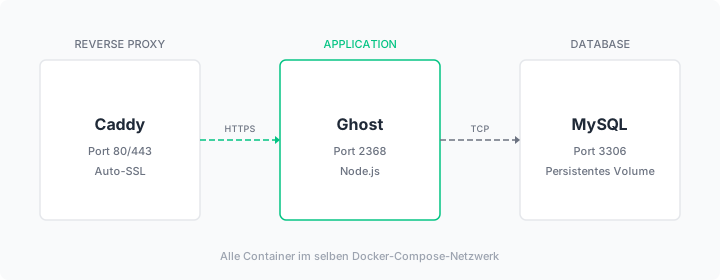
Caddy is used as the reverse proxy. Caddy requires only a few lines of configuration and automatically obtains a Let's Encrypt certificate for HTTPS.
Create the file Caddyfile:
blog.your-company.com {
    reverse_proxy ghost:2368
}
Replace blog.your-company.com with your domain.
4. Create Docker Compose file
The docker-compose.yml describes all three containers and how they work together. Ghost provides an official Docker image, so no custom build is needed:
services:
  caddy:
    image: caddy:2-alpine
    restart: always
    ports:
      - "80:80"
      - "443:443"
    volumes:
      - ./Caddyfile:/etc/caddy/Caddyfile:ro
      - caddy_data:/data
      - caddy_config:/config
    depends_on:
      - ghost

  ghost:
    image: ghost:5-alpine
    restart: always
    volumes:
      - ghost_content:/var/lib/ghost/content
    environment:
      - url=https://blog.your-company.com
      - database__client=mysql
      - database__connection__host=db
      - database__connection__port=3306
      - database__connection__user=ghost
      - database__connection__password=SECURE_DB_PASSWORD
      - database__connection__database=ghost
      - NODE_ENV=production
    depends_on:
      - db

  db:
    image: mysql:8.0
    restart: always
    volumes:
      - db_data:/var/lib/mysql
    environment:
      - MYSQL_ROOT_PASSWORD=ROOT_PASSWORD_HERE
      - MYSQL_DATABASE=ghost
      - MYSQL_USER=ghost
      - MYSQL_PASSWORD=SECURE_DB_PASSWORD

volumes:
  ghost_content:
  db_data:
  caddy_data:
  caddy_config:
Replace SECURE_DB_PASSWORD (identical in both places), ROOT_PASSWORD_HERE and blog.your-company.com with your own values. Generate secure passwords with:
openssl rand -base64 32
Key configuration notes:
restart: alwaysautomatically restarts each container if it crashes or the server rebootsdepends_onsets the startup order: database before Ghost, Ghost before Caddyvolumesstore data persistently outside the containers. Without volumes, all content is lost on restart
Environment variable overview:
urlis the most important variable. Ghost uses it for internal links, the sitemap, RSS feeds and the API base URL. It must include the protocol (https://) and the exact domain.database__client=mysqlconfigures MySQL as the database (Ghost also supports SQLite, but MySQL is recommended for production)NODE_ENV=productionenables caching and performance optimizations
5. Start everything
docker compose up -d
The -d option (detached) starts the containers in the background. The first start takes a few minutes. Docker pulls the images, MySQL initializes the database and Ghost runs migrations.
6. Check that everything is running
docker compose ps
All three containers (caddy, ghost, db) should show status running. If a container fails to start:
docker compose logs ghost
Ghost is ready when Ghost booted appears in the log.
Then open https://blog.your-company.com in your browser.
Create admin account
Navigate to https://blog.your-company.com/ghost (the admin panel). On first visit, Ghost guides you through a setup wizard:
- Enter site title and description
- Create admin account (name, email, password)
- Optional: invite team members
After setup, you land in the Ghost dashboard.
Activate Content API
By default, Ghost delivers content through its own frontend (theme). To use Ghost as a headless CMS, the Content API is enabled via a Custom Integration:
- Navigate to Settings > Integrations
- Click Add custom integration
- Enter a name (e.g. "My Frontend")
- Ghost generates a Content API Key and an Admin API Key
The Content API Key is used for public read access to content. The Admin API Key allows write access and should only be used server-side.
Test the Content API
Create a test article in the Ghost editor (admin panel under Posts > New post). Write a title and some text, then click Publish.
Test the API with the Content API Key from the previous step:
curl "https://blog.your-company.com/ghost/api/content/posts/?key=YOUR_CONTENT_API_KEY"
The response contains your posts as JSON:
{
  "posts": [
    {
      "id": "...",
      "title": "My first post",
      "slug": "my-first-post",
      "html": "<p>...</p>",
      "excerpt": "...",
      "published_at": "2026-05-16T10:00:00.000Z"
    }
  ]
}
Available Content API endpoints:
/ghost/api/content/posts/(articles)/ghost/api/content/pages/(pages)/ghost/api/content/tags/(tags)/ghost/api/content/authors/(authors)/ghost/api/content/settings/(site settings)
Headless mode: connecting your own frontend
To use Ghost purely as a data source with a custom frontend, there are two approaches:
Static Site Generation (SSG): A framework like Nuxt or Astro fetches all content via Content API during each build and generates static HTML pages. Advantage: maximum performance, CDN-ready. Disadvantage: new content requires a rebuild.
Server-Side Rendering (SSR): The frontend fetches content via API on each request. Advantage: content is visible immediately after publication. Disadvantage: the frontend must run as a server.
In both cases, the built-in Ghost theme is not used. It can be replaced with an empty theme or disabled via route redirect configuration.
Set up backups
Database backup
With Path A (Coolify), you can configure automatic database backups directly in the Coolify dashboard.
With Path B, create a regular backup of the MySQL database. First create the backup directory:
mkdir -p /opt/backups
A single backup can be created manually at any time:
docker exec ghost-db-1 mysqldump -u ghost -pSECURE_DB_PASSWORD ghost > /opt/backups/ghost-db-$(date +%Y%m%d).sql
To run the backup automatically, set up a cronjob. A cronjob is a time-scheduled command that the operating system executes regularly:
crontab -e
Add the following line:
0 3 * * * docker exec ghost-db-1 mysqldump -u ghost -pSECURE_DB_PASSWORD ghost > /opt/backups/ghost-db-$(date +\%Y\%m\%d).sql
The five values 0 3 * * * mean: minute 0, hour 3, every day, every month, every weekday. The backup runs daily at 03:00 AM.
Back up content directory
Ghost stores uploaded images and themes in the ghost_content volume. Find the storage location with:
docker volume inspect ghost_ghost_content --format '{{ .Mountpoint }}'
Additionally, Ghost offers a complete JSON export of all content in the admin panel under Settings > Labs.
Server backup via dataforest cloud
The dataforest cloud offers automatic daily offsite backups as an add-on option. This allows you to back up all data on your Seed and restore it at any time. Backups are not active by default and must be enabled in the cloud console.
Summary
After completing this guide, Ghost runs as a headless CMS on your own server, accessible via HTTPS and secured with automatic backups. Articles, pages and media can be delivered to any frontend via the Content API.
If you need structured content with custom content types (products, events, custom data structures), the Strapi guide provides a suitable alternative. More possibilities for your Seed can be found in our solutions and guides.