Why your own Minecraft server?
Managed game hosters offer Minecraft servers with a few clicks. But slot limits, restricted mod selection and separate costs per server add up. Those who want full control over plugins, settings and player count run their server themselves.
A proven Docker image for this is itzg/minecraft-server. Over 13,700 GitHub stars, actively maintained (latest release: May 2026), supports Vanilla, Paper, Fabric and Forge via a single environment variable. Automatic version management and plugin downloads are built in.
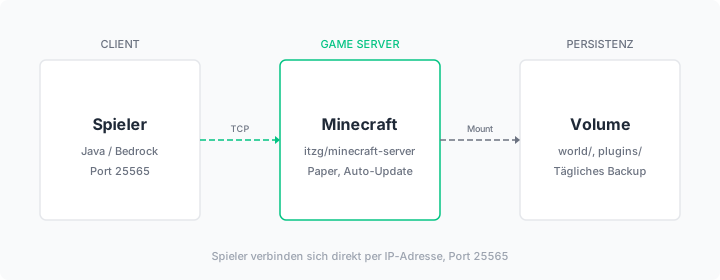
This guide describes the installation of a Paper server via Docker Compose on a dataforest Seed. Paper is an optimized Minecraft server with significantly better performance than Vanilla and full plugin compatibility. After completion, a 24/7 reachable Minecraft server with automatic backups is ready.
Prerequisites
- A Seed on the dataforest cloud (recommended: 2 CPU, 4 GB RAM for 5-10 players; 4 CPU, 8 GB RAM for 20+ players or mods). Minecraft is CPU-intensive (single-threaded) but primarily needs RAM for world management.
- SSH access to the Seed
Install Docker
Connect to your Seed via SSH and install Docker. The official installation script detects your operating system automatically and sets up Docker including Docker Compose:
curl -fsSL https://get.docker.com | sh
If you see Could not get lock /var/lib/dpkg/lock-frontend: Fresh Seeds run automatic system updates after first boot. Wait a minute and try again.
Create project directory
All configuration files are stored in a shared directory:
mkdir -p /opt/minecraft && cd /opt/minecraft
Create Docker Compose file
The docker-compose.yml describes the Minecraft container and its configuration:
services:
  minecraft:
    image: itzg/minecraft-server
    restart: always
    ports:
      - "25565:25565"
    environment:
      EULA: "TRUE"
      TYPE: "PAPER"
      VERSION: "LATEST"
      MEMORY: "2G"
      MAX_PLAYERS: 20
      MOTD: "Welcome to our server"
      DIFFICULTY: "normal"
      VIEW_DISTANCE: 12
      ENABLE_COMMAND_BLOCK: "true"
      SPAWN_PROTECTION: 0
      SNOOPER_ENABLED: "false"
      OPS: ""
    volumes:
      - ./data:/data
    stdin_open: true
    tty: true
Adjust the values to your needs:
EULA: "TRUE"is required. Without agreeing to the Minecraft EULA, the server will not start.TYPE: "PAPER"starts a Paper server. Alternatives:VANILLA,FABRIC,FORGE.MEMORY: "2G"reserves 2 GB RAM for the Minecraft process. Adjust this value to your Seed model (maximum 75% of available RAM).OPS: ""enter your Minecraft username here to set yourself as operator (admin). Separate multiple names with commas.VIEW_DISTANCE: 12controls the render distance in chunks. Lower values (8-10) save RAM with many players.
The option stdin_open: true with tty: true allows interactive use of the Minecraft console.
Start the server
docker compose up -d
The first start takes a few minutes. The image downloads the Paper server and generates the world. Follow the progress live:
docker compose logs -f minecraft
Once the line Done appears, the server is ready. Press Ctrl+C to exit the log view (the server keeps running).
Test the connection
Open Minecraft Java Edition and select Multiplayer > Add Server. Enter the IP address of your Seed as the server address. The default port 25565 does not need to be specified.
If the connection fails:
- Check if the container is running:
docker compose ps - Check the logs for errors:
docker compose logs minecraft - Check if port 25565 is reachable:
ss -tlnp | grep 25565
Enable whitelist (recommended)
Without a whitelist, anyone who knows the IP address can join the server. For a private server, enabling the whitelist is recommended.
Add the following environment variables to the docker-compose.yml:
    environment:
      # ... existing variables ...
      ENABLE_WHITELIST: "true"
      WHITELIST: "Player1,Player2,Player3"
Replace the player names with the Minecraft usernames of your friends. Then restart the container:
docker compose up -d
New players can also be added via the server console:
docker compose exec minecraft rcon-cli whitelist add PLAYERNAME
Install plugins
Paper servers support Bukkit/Spigot plugins. The Docker image can automatically download plugins at startup. Add the download URLs as an environment variable:
    environment:
      # ... existing variables ...
      PLUGINS: |
        https://download.luckperms.net/1556/bukkit/loader/LuckPerms-Bukkit-5.4.145.jar
Alternatively, place plugin JAR files directly in the /opt/minecraft/data/plugins/ directory:
ls /opt/minecraft/data/plugins/
After adding new plugins, restart the container:
docker compose restart minecraft
Adjust server configuration
The server.properties file is in the data directory and can be edited directly:
nano /opt/minecraft/data/server.properties
All settings set via environment variables override the file on the next start. For permanent manual changes in server.properties, remove the corresponding environment variable from the docker-compose.yml.
After changes, restart the container:
docker compose restart minecraft
Set up backups
Manual backup
The world directory contains all game saves. A single backup can be created at any time:
mkdir -p /opt/backups
tar -czf /opt/backups/minecraft-$(date +%Y%m%d).tar.gz -C /opt/minecraft/data world
The command compresses the world directory into an archive with the current date in the filename.
Automatic backup via cronjob
To run backups automatically, set up a cronjob. A cronjob is a time-scheduled command that the operating system executes regularly:
crontab -e
Add the following line:
0 4 * * * tar -czf /opt/backups/minecraft-$(date +\%Y\%m\%d).tar.gz -C /opt/minecraft/data world
The five values 0 4 * * * mean: minute 0, hour 4, every day, every month, every weekday. The backup runs daily at 04:00.
Clean up old backups
To prevent disk space from filling up, delete backups older than 7 days. Add a second cronjob:
30 4 * * * find /opt/backups -name "minecraft-*.tar.gz" -mtime +7 -delete
-mtime +7 means: files modified more than 7 days ago.
Server backup via dataforest cloud
The dataforest cloud offers automatic daily offsite backups as a bookable option. This allows backing up all data on your Seed and restoring at any time. Backups are not active by default and must be enabled in the Cloud console.
Performance optimization
Adjust RAM
If the server becomes slow with many players or large worlds, increase the allocated RAM:
MEMORY: "4G"
Always leave at least 1 GB free for the operating system and Docker.
Reduce view distance
With 15+ players, a reduced view distance can significantly improve performance:
      VIEW_DISTANCE: 8
      SIMULATION_DISTANCE: 6
Paper-specific optimizations
Paper automatically applies performance patches that do not affect the Vanilla server. For further optimization, the file /opt/minecraft/data/config/paper-global.yml can be adjusted. The default values are sufficient for most servers.
Troubleshooting
Server does not start:
Check the logs: docker compose logs minecraft. Most common cause: EULA not set to TRUE or too little RAM allocated.
Players cannot connect:
Check if port 25565 is reachable. On a fresh Debian 13 Seed, no firewall is active. If ufw is active: ufw allow 25565/tcp.
High RAM usage:
The Java process fully utilizes the allocated RAM (MEMORY). This is normal behavior. Reduce the value if other services run on the Seed.
World corrupted:
Stop the server (docker compose down) and replace the world directory with a backup: tar -xzf /opt/backups/minecraft-DATE.tar.gz -C /opt/minecraft/data.
Summary
After completing this guide, a Paper Minecraft server runs on your Seed, reachable on port 25565. Automatic backups save the world daily.
For additional games on the same server, the Valheim guide describes setting up a Valheim server alongside your Minecraft server. An overview of all possibilities is available on our Game Server Hosting solution page.