Why a headless CMS?
Traditional content management systems tightly couple content and presentation. Once content needs to appear not only on a website but also in an app, a newsletter or an e-commerce shop, this model hits its limits. A headless CMS separates the two: editors manage content through an admin panel, developers fetch it via API and display it on any number of channels.
A proven open-source tool for this approach is Strapi. Over 70,000 GitHub stars, active development, a visual Content-Type Builder and automatically generated REST and GraphQL APIs. Strapi is particularly suited for agencies, developers and companies delivering structured content (products, pages, events) to custom frontends.
This guide describes two installation paths:
- Path A: Via Coolify (recommended for beginners): one-click installation, automatic SSL
- Path B: Via Docker Compose (for more control): manual configuration, full flexibility
Prerequisites
- A Seed on the dataforest cloud (recommended: 4 CPU, 8 GB RAM; 2 CPU / 4 GB sufficient for getting started). Strapi needs memory for Node.js and the database. With more than 10 content types or heavy media usage, the larger model is recommended.
- SSH access to the Seed
- A custom domain (e.g. cms.your-company.com) pointing to your Seed's IP address via DNS A record. Set the A record at your domain provider: enter the Seed's IP address as the target for your desired subdomain. It may take up to an hour for the entry to propagate globally.
- For Path A: Coolify installed on the Seed (see Coolify Guide)
Path A: Installation via Coolify
Coolify offers Strapi as a one-click service. If you already use Coolify, this is the fastest path.
1. Create Strapi service
Open the Coolify dashboard and navigate to your project. Click New Resource and select Service. Search for Strapi in the service list and select it.
2. Configure domain
In the service settings, enter your domain (e.g. cms.your-company.com). Coolify automatically configures a Let's Encrypt certificate for HTTPS.
3. Check environment variables
Coolify sets up PostgreSQL as the database automatically. Check that secure passwords are set in the environment variables. Key variables:
DATABASE_CLIENT:postgres(pre-configured by Coolify)DATABASE_PASSWORD: Database password (change the default value)APP_KEYS: Comma-separated keys for sessions (Coolify generates these automatically)JWT_SECRET: Key for the Users-Permissions JWT tokenADMIN_JWT_SECRET: Key for the admin panel JWT
4. Start service
Click Deploy. Coolify builds the Strapi image, starts the containers and configures SSL. The first start takes a few minutes as Strapi initializes the database and builds the admin panel. After that, your CMS is reachable at your domain.
Path B: Installation via Docker Compose
This path offers more control over the configuration and is suitable if you don't use Coolify.
1. Install Docker
Connect to your Seed via SSH and install Docker. The official installation script detects your operating system automatically and sets up Docker including Docker Compose:
curl -fsSL https://get.docker.com | sh
2. Create project directory
All configuration files for Strapi are placed in a shared directory:
mkdir -p /opt/strapi && cd /opt/strapi
3. Create Dockerfile
Strapi does not provide an official Docker image. Instead, a custom image is built containing the Strapi application. Create the file Dockerfile:
FROM node:22-alpine AS build
RUN apk add --no-cache build-base python3
WORKDIR /opt/app
RUN npx create-strapi-app@latest . \
    --no-run \
    --skip-cloud \
    --no-example \
    --no-git-init \
    --typescript \
    --non-interactive \
    --dbclient=postgres \
    --dbhost=127.0.0.1 \
    --dbport=5432 \
    --dbname=strapi \
    --dbusername=strapi \
    --dbpassword=placeholder
ENV NODE_OPTIONS=--max-old-space-size=1536
RUN NODE_ENV=production npm run build

FROM node:22-alpine
RUN apk add --no-cache vips-dev
WORKDIR /opt/app
COPY --from=build /opt/app ./
ENV NODE_ENV=production
EXPOSE 1337
CMD ["npm", "run", "start"]
This multi-stage build separates the build process from the production image. The first stage installs Strapi and builds the admin panel. The second stage contains only the runnable application without build tools, making the image smaller and more secure.
The database parameters in the build step (--dbhost, --dbpassword etc.) are placeholders for project initialization. The actual database connection is set at runtime via the environment variables in docker-compose.yml. NODE_OPTIONS=--max-old-space-size=1536 increases the available memory for the admin panel build process.
4. Create Caddyfile
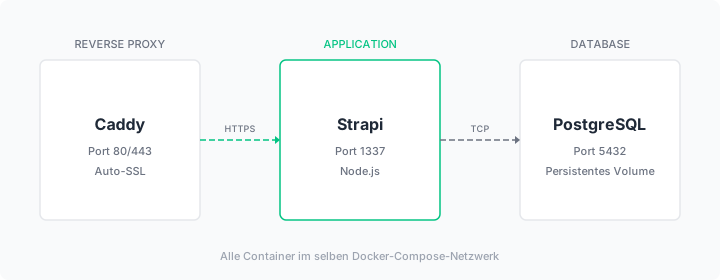
Caddy is used as the reverse proxy. Caddy requires only a few lines of configuration and automatically obtains a Let's Encrypt certificate for HTTPS.
Create the file Caddyfile:
cms.your-company.com {
    reverse_proxy strapi:1337
}
Replace cms.your-company.com with your domain.
5. Create Docker Compose file
The docker-compose.yml describes all three containers and how they work together:
services:
  caddy:
    image: caddy:2-alpine
    restart: always
    ports:
      - "80:80"
      - "443:443"
    volumes:
      - ./Caddyfile:/etc/caddy/Caddyfile:ro
      - caddy_data:/data
      - caddy_config:/config
    depends_on:
      - strapi

  strapi:
    build: .
    restart: always
    volumes:
      - strapi_uploads:/opt/app/public/uploads
    environment:
      - NODE_ENV=production
      - DATABASE_CLIENT=postgres
      - DATABASE_HOST=db
      - DATABASE_PORT=5432
      - DATABASE_NAME=strapi
      - DATABASE_USERNAME=strapi
      - DATABASE_PASSWORD=SECURE_DB_PASSWORD
      - JWT_SECRET=LONG_RANDOM_STRING_1
      - ADMIN_JWT_SECRET=LONG_RANDOM_STRING_2
      - APP_KEYS=KEY1,KEY2,KEY3,KEY4
    depends_on:
      - db

  db:
    image: postgres:16-alpine
    restart: always
    volumes:
      - db_data:/var/lib/postgresql/data
    environment:
      - POSTGRES_DB=strapi
      - POSTGRES_USER=strapi
      - POSTGRES_PASSWORD=SECURE_DB_PASSWORD

volumes:
  strapi_uploads:
  db_data:
  caddy_data:
  caddy_config:
Replace SECURE_DB_PASSWORD with a secure password (identical in both places). Generate the keys for JWT_SECRET, ADMIN_JWT_SECRET and APP_KEYS with:
openssl rand -base64 32
Run the command four times and use the results as a comma-separated list for APP_KEYS.
Key configuration notes:
restart: alwaysautomatically restarts each container if it crashes or the server rebootsdepends_onsets the startup order: database before Strapi, Strapi before Caddyvolumesstore data persistently outside the containers. Without volumes, uploads and database entries are lost on restart
Environment variable overview:
DATABASE_CLIENT=postgresconfigures PostgreSQL as the databaseJWT_SECRETandADMIN_JWT_SECRETsign authentication tokens. Without custom values, Strapi uses insecure default keys.APP_KEYSare used for session cookies and CSRF protection
6. Build and start
docker compose up -d --build
The --build option builds the Strapi image on first start. The build process takes a few minutes as Strapi installs dependencies and compiles the admin panel.
7. Check that everything is running
docker compose ps
All three containers (caddy, strapi, db) should show status running. If a container fails to start:
docker compose logs strapi
Strapi is ready when Server is running appears in the log. You can also check the status via health check:
curl -s -o /dev/null -w "%{http_code}" https://cms.your-company.com/_health
The endpoint returns HTTP 204 once Strapi is fully started.
Then open https://cms.your-company.com in your browser.
Create admin account
On first visit, Strapi displays a registration form for the admin account. Choose a username, email address and secure password. This account has full access to the admin panel and all APIs.
Create a content type
Content types define the structure of your content. As an example, a content type "Article" is created:
- Navigate to Content-Type Builder in the admin panel
- Click Create new collection type
- Enter the name
Article - Add fields:
title(Text, Required)slug(UID, based on title)content(Rich Text)cover(Media, Single image)publishedAt(DateTime)
- Click Save
Strapi automatically generates REST endpoints for the new content type. GraphQL can be enabled by installing the @strapi/plugin-graphql package.
Test the REST API
By default, all API endpoints are protected. For public read access, permissions must be configured:
- Navigate to Settings > Roles > Public
- Under
Article, enable the permissions find and findOne - Save the changes
Create a test article in the admin panel under Content Manager > Article > Create new entry. Enter a title and content, then click Publish.
Test the API:
curl https://cms.your-company.com/api/articles
The response contains your articles as JSON:
{
  "data": [
    {
      "id": 1,
      "documentId": "abc123",
      "title": "My first article",
      "slug": "my-first-article",
      "content": "..."
    }
  ]
}
Set up backups
Database backup
With Path A (Coolify), you can configure automatic database backups directly in the Coolify dashboard.
With Path B, create a regular backup of the PostgreSQL database. First create the backup directory:
mkdir -p /opt/backups
A single backup can be created manually at any time:
docker exec strapi-db-1 pg_dump -U strapi strapi > /opt/backups/strapi-db-$(date +%Y%m%d).sql
To run the backup automatically, set up a cronjob. A cronjob is a time-scheduled command that the operating system executes regularly:
crontab -e
Add the following line:
0 3 * * * docker exec strapi-db-1 pg_dump -U strapi strapi > /opt/backups/strapi-db-$(date +\%Y\%m\%d).sql
The five values 0 3 * * * mean: minute 0, hour 3, every day, every month, every weekday. The backup runs daily at 03:00 AM.
Back up upload directory
Uploaded media is stored in the strapi_uploads volume. Find the storage location with:
docker volume inspect strapi_strapi_uploads --format '{{ .Mountpoint }}'
This directory should be backed up regularly, for example with rsync to an external system.
Server backup via dataforest cloud
The dataforest cloud offers automatic daily offsite backups as an add-on option. This allows you to back up all data on your Seed and restore it at any time. Backups are not active by default and must be enabled in the cloud console.
Summary
After completing this guide, Strapi runs as a headless CMS on your own server, accessible via HTTPS and secured with automatic backups. Content types can be defined visually, content fetched via REST API and delivered to any frontend.
More possibilities for your Seed can be found in our solutions and guides. If you additionally need a publishing-focused CMS, the Ghost guide describes setting up a blog CMS with Content API.