This guide shows you how to set up a highly available Kubernetes cluster with three servers. You will connect three dataforest Seeds via an encrypted WireGuard mesh network, install k3s as a lightweight Kubernetes distribution, set up Longhorn for replicated storage volumes, and deploy a first application. By the end, you will have a production-ready cluster that automatically compensates for individual server failures, performs rolling updates without downtime, and replicates data across all nodes. Plan for 60 to 90 minutes for the entire setup.
Why a Kubernetes Cluster?
A single server is sufficient for many applications. However, once high availability, uninterrupted updates, or horizontal scaling are required, a single server reaches its limits. If it goes down, all services running on it are offline simultaneously. Updates require maintenance windows. Traffic spikes can only be absorbed through vertical scaling (more CPU, more RAM), which quickly hits physical constraints.
Kubernetes solves these problems by connecting multiple servers into a cluster. Applications are distributed as containers across the available nodes. If a node fails, Kubernetes automatically moves the affected workloads to the remaining nodes. Rolling updates replace containers incrementally, ensuring at least one healthy instance is running at all times. Horizontal scaling adds more replicas instead of upgrading a single server.
For applications that do not require high availability and where occasional brief outages are acceptable, a Kubernetes cluster is not strictly necessary. A deployment platform on a single server offers a much simpler solution. You can find an overview of these options on the Self-Hosted Deployment page.
Architecture Overview
The cluster consists of three layers that build upon each other.
WireGuard Mesh forms the network layer. All three servers are connected via encrypted point-to-point tunnels. All communication between nodes runs through this private network. External attackers can neither read nor manipulate cluster-internal traffic. You can find more background on WireGuard in the VPN guide.
k3s is a certified, lightweight Kubernetes distribution from Rancher (SUSE). It packages the entire Kubernetes stack into a single binary and requires significantly fewer resources than a standard Kubernetes cluster.
Kubernetes distinguishes between the Control Plane (the management layer) and Workloads (your applications). The Control Plane consists of the API Server (accepts kubectl commands), the Scheduler (decides which node a Pod runs on), the Controller Manager (ensures the desired state is maintained), and etcd (a distributed database that stores the entire cluster state: Deployments, Services, Secrets, configurations).
In a standard Kubernetes setup, the Control Plane and Workloads run on separate servers (control-plane nodes and worker nodes). k3s simplifies this: in this tutorial, all three nodes run as server nodes. Each server node runs both the Control Plane and your Workloads. All three nodes hold a copy of etcd. etcd uses a consensus algorithm (Raft) that requires a majority of nodes to confirm write operations. With three nodes, the majority is two. This means: if one node fails, the remaining two can still make decisions. If two nodes fail, the majority is lost and the cluster cannot accept new changes (running workloads on the remaining node are not affected, but new deployments or scaling operations are not possible).
Longhorn provides replicated storage volumes. When a Pod needs persistent data (database, uploads), Longhorn creates a volume and replicates it across multiple nodes. If a node fails, the data remains available on the other nodes.
Traefik acts as the Ingress Controller and is already integrated into k3s. It receives incoming HTTP/HTTPS traffic and routes it to the appropriate services based on routing rules.
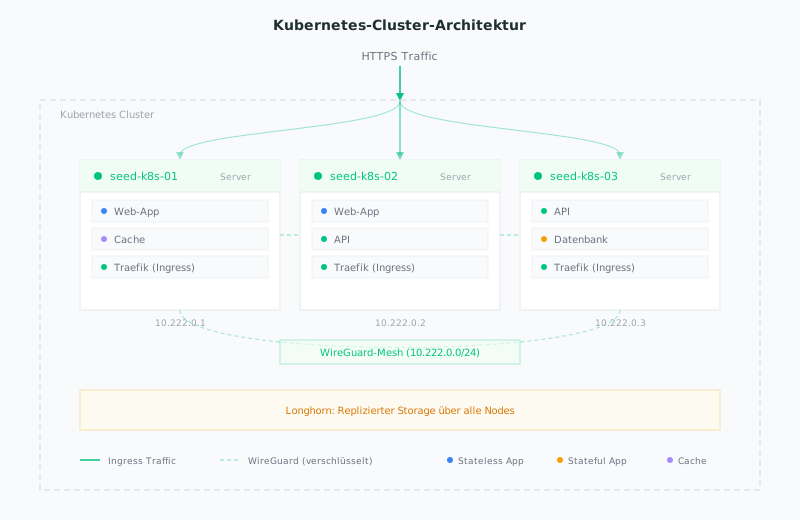
| Node | Public IP | WireGuard IP | Role |
|---|---|---|---|
| seed-k8s-01 | (your IP) | 10.222.0.1 | Server |
| seed-k8s-02 | (your IP) | 10.222.0.2 | Server |
| seed-k8s-03 | (your IP) | 10.222.0.3 | Server |
Prerequisites
- 3 Seeds in the dataforest cloud. Minimum: Plan
entry-c4-m8-s80(4 CPU, 8 GB RAM, 80 GB SSD). Recommendation for comfortable operation: Planentry-c8-m16-s320(8 CPU, 16 GB RAM, 320 GB SSD). Kubernetes itself, k3s, Longhorn, and the overlay network already consume resources. With the larger plan, enough capacity remains for your actual workloads. - SSH access to all three Seeds
- kubectl on your local machine (official installation guide)
- Optional: A domain with DNS access to test HTTPS Ingress with Let's Encrypt
- Basic knowledge: Docker, Linux terminal, SSH
The three Seeds can be created via the dataforest cloud UI or through the Public API. Using the API, the first node looks like this:
curl -X POST "https://api.dataforest.net/api/v1/public/seeds" \
  -H "Authorization: Bearer <API-Token>" \
  -H "Content-Type: application/json" \
  -d '{
    "name": "seed-k8s-01",
    "plan": "lines/entry/models/entry-c4-m8-s80",
    "location": "fra01",
    "project_id": "<Project-ID>",
    "ssh_keys": ["<SSH-Key-ID>"],
    "source": {
      "type": "image",
      "ref": "images/debian/versions/debian-v13"
    },
    "enable_ipv4": true
  }'
Repeat the call with the names seed-k8s-02 and seed-k8s-03. You can find your API token and project ID in the team settings of the Cloud UI. Available SSH key IDs can be retrieved with GET /sshkeys.
Preparing the Seeds
Perform the following steps on all three nodes. Connect via SSH and work as root.
Update the System
apt update && apt upgrade -y
A fresh system with up-to-date packages avoids compatibility issues when installing k3s and Longhorn.
Disable Swap
The kubelet process calculates available resources, schedules Pods based on memory requests, and enforces limits. If the operating system swaps memory to disk in the background, these calculations become unreliable. Pods could appear to use more memory than is available, and under actual memory pressure, the system responds with extreme slowdown instead of a controlled Pod restart. Since Kubernetes 1.34, a stable swap mode (LimitedSwap) allows Burstable Pods controlled swap access. For a cluster setup like this one, disabled swap remains the simplest and safest option.
swapoff -a
sed -i '/swap/d' /etc/fstab
The first command disables swap immediately. The second removes the swap entry from /etc/fstab so that swap is not automatically re-enabled after a reboot.
Load Kernel Modules
Container networking requires two kernel modules: overlay for the overlay filesystem (how containers layer their filesystems) and br_netfilter for correct processing of bridge traffic through iptables.
cat <<EOF | tee /etc/modules-load.d/k8s.conf
overlay
br_netfilter
EOF

modprobe overlay
modprobe br_netfilter
The file under /etc/modules-load.d/ ensures the modules are loaded automatically after a reboot. The modprobe commands load them immediately into the running kernel.
Set Sysctl Parameters
Kubernetes networking requires the kernel to correctly forward packets between network bridges and filter them through iptables rules:
cat <<EOF | tee /etc/sysctl.d/k8s.conf
net.bridge.bridge-nf-call-iptables = 1
net.bridge.bridge-nf-call-ip6tables = 1
net.ipv4.ip_forward = 1
EOF

sysctl --system
net.bridge.bridge-nf-call-iptables ensures that traffic flowing through a Linux bridge passes through iptables rules. Without this setting, NetworkPolicies and Service routing would not work. net.ipv4.ip_forward allows the kernel to forward packets between network interfaces, which is required for routing between Pods on different nodes.
Configure the Firewall
Debian 13 does not come with iptables pre-installed. Install it:
apt install iptables
The cluster requires the following ports. Each port serves a specific function:
| Port | Protocol | Purpose |
|---|---|---|
| 51820 | UDP | WireGuard tunnel between nodes |
| 6443 | TCP | Kubernetes API Server (kubectl communication, node registration) |
| 9345 | TCP | k3s Supervisor API (nodes joining the cluster) |
| 10250 | TCP | Kubelet API (API Server communicates with kubelets on each node) |
| 2379-2380 | TCP | etcd client and peer communication (cluster state) |
| 8472 | UDP | VXLAN (Flannel overlay network between Pods) |
| 80 | TCP | HTTP Ingress (incoming web traffic) |
| 443 | TCP | HTTPS Ingress (incoming web traffic, TLS) |
Open these ports for cluster-internal traffic (WireGuard subnet) and the publicly accessible ports:
# WireGuard: must be reachable from all other nodes
iptables -A INPUT -p udp --dport 51820 -j ACCEPT

# Kubernetes API Server: public for kubectl access
iptables -A INPUT -p tcp --dport 6443 -j ACCEPT

# k3s Supervisor: only from the WireGuard network
iptables -A INPUT -s 10.222.0.0/24 -p tcp --dport 9345 -j ACCEPT

# Kubelet API: only from the WireGuard network
iptables -A INPUT -s 10.222.0.0/24 -p tcp --dport 10250 -j ACCEPT

# etcd: only from the WireGuard network
iptables -A INPUT -s 10.222.0.0/24 -p tcp --dport 2379:2380 -j ACCEPT

# Flannel VXLAN: only from the WireGuard network
iptables -A INPUT -s 10.222.0.0/24 -p udp --dport 8472 -j ACCEPT

# Ingress: publicly accessible
iptables -A INPUT -p tcp --dport 80 -j ACCEPT
iptables -A INPUT -p tcp --dport 443 -j ACCEPT
To persist these rules across reboots, install iptables-persistent:
apt install iptables-persistent
netfilter-persistent save
During installation, the package asks whether the current rules should be saved. Confirm with Yes. After future changes, save again with netfilter-persistent save.
Setting Up the WireGuard Mesh
Kubernetes requires that all Pods can communicate with each other without NAT and that nodes can reach all Pods directly. On dedicated servers without a managed VLAN, a WireGuard mesh fulfills this requirement: it spans an encrypted overlay network across the public IPs of your nodes.
WireGuard has been part of the Linux kernel since version 5.6 (March 2020). According to University of Amsterdam benchmarks, the pure encryption overhead is below 0.5 ms per hop. In practice, factors like routing and system load add up, so you can expect low single-digit milliseconds.
In this tutorial, k3s uses VXLAN as the Flannel backend (--flannel-backend=vxlan) and routes it through the WireGuard interface (--flannel-iface=wg0). The WireGuard mesh encrypts all traffic between nodes, so a second encryption layer at the Flannel level is unnecessary. Both control-plane communication (API server, embedded etcd) and Pod-to-Pod traffic run through the mesh. That is why it must be in place before k3s is installed.
Install WireGuard
Run on all three nodes:
apt install wireguard
The package installs the management tools wg and wg-quick. The WireGuard kernel module has been built into the kernel since Linux 5.6 and is available by default in Debian 13.
Generate Key Pairs
Each node needs its own key pair. The private key stays on the respective node. The public keys are shared with the other nodes.
Run on each of the three nodes:
wg genkey | tee /etc/wireguard/private.key
chmod 600 /etc/wireguard/private.key
cat /etc/wireguard/private.key | wg pubkey > /etc/wireguard/public.key
Note down the public key of each node:
cat /etc/wireguard/public.key
You will need these three public keys in the next step for configuring the peer sections.
Create the Configuration
In a mesh network, each node knows the other two as peers. Create the file /etc/wireguard/wg0.conf on each node with the corresponding content.
Node 1 (seed-k8s-01): /etc/wireguard/wg0.conf
[Interface]
PrivateKey = <PRIVATE_KEY_NODE_1>
Address = 10.222.0.1/24
ListenPort = 51820
MTU = 1420

[Peer]
PublicKey = <PUBLIC_KEY_NODE_2>
AllowedIPs = 10.222.0.2/32
Endpoint = <PUBLIC_IP_NODE_2>:51820

[Peer]
PublicKey = <PUBLIC_KEY_NODE_3>
AllowedIPs = 10.222.0.3/32
Endpoint = <PUBLIC_IP_NODE_3>:51820
Node 2 (seed-k8s-02): /etc/wireguard/wg0.conf
[Interface]
PrivateKey = <PRIVATE_KEY_NODE_2>
Address = 10.222.0.2/24
ListenPort = 51820
MTU = 1420

[Peer]
PublicKey = <PUBLIC_KEY_NODE_1>
AllowedIPs = 10.222.0.1/32
Endpoint = <PUBLIC_IP_NODE_1>:51820

[Peer]
PublicKey = <PUBLIC_KEY_NODE_3>
AllowedIPs = 10.222.0.3/32
Endpoint = <PUBLIC_IP_NODE_3>:51820
Node 3 (seed-k8s-03): /etc/wireguard/wg0.conf
[Interface]
PrivateKey = <PRIVATE_KEY_NODE_3>
Address = 10.222.0.3/24
ListenPort = 51820
MTU = 1420

[Peer]
PublicKey = <PUBLIC_KEY_NODE_1>
AllowedIPs = 10.222.0.1/32
Endpoint = <PUBLIC_IP_NODE_1>:51820

[Peer]
PublicKey = <PUBLIC_KEY_NODE_2>
AllowedIPs = 10.222.0.2/32
Endpoint = <PUBLIC_IP_NODE_2>:51820
Explanation of the parameters:
PrivateKey: The private key of this node (from/etc/wireguard/private.key).Address: The WireGuard IP of this node in the private subnet 10.222.0.0/24.ListenPort: The UDP port on which WireGuard accepts connections.MTU = 1420: WireGuard adds a header to each packet (60 bytes for IPv4, 80 bytes for IPv6). The standard Ethernet MTU is 1500 bytes. 1500 minus 80 equals 1420 bytes of usable packet size within the tunnel. An MTU value that is too high leads to packet fragmentation and performance issues.PublicKey: The public key of the respective peer node.AllowedIPs: Defines which IP addresses are reachable via this peer. In a mesh setup, this is the individual WireGuard IP of the peer (/32).Endpoint: The public IP and port of the peer node, through which the tunnel is established.
Start WireGuard
Enable and start the tunnel on all three nodes:
systemctl enable --now wg-quick@wg0
This command starts the WireGuard interface immediately and configures automatic startup after a reboot.
Validate the Connection
Test reachability from each node to the other two. On Node 1:
ping -c 3 10.222.0.2
ping -c 3 10.222.0.3
On Node 2:
ping -c 3 10.222.0.1
ping -c 3 10.222.0.3
On Node 3:
ping -c 3 10.222.0.1
ping -c 3 10.222.0.2
All pings must return responses. If a ping fails, do not proceed with the k3s installation. The cluster only works if all nodes can communicate over the WireGuard mesh.
Troubleshooting WireGuard
If a ping fails, check the following in order:
Show tunnel status:
wg show
Under latest handshake you can see whether a connection to the peer exists. If this entry is missing, no handshake has occurred yet.
Port reachable? Check on the target node whether WireGuard is listening on the correct port:
ss -ulnp | grep 51820
If there is no output, WireGuard is not started or the port is misconfigured.
Check the firewall: Make sure UDP port 51820 is not blocked:
iptables -L INPUT -n | grep 51820
Check public keys: A common mistake is swapping public and private keys or using the wrong public key in the peer configuration. Compare the output of cat /etc/wireguard/public.key on the respective node with the PublicKey entry in the peer sections of the other nodes.
Endpoint IP correct? The Endpoint value must be the public IP of the peer node, not the WireGuard IP.
Installing k3s
k3s is installed in two phases. Node 1 initializes the cluster with embedded etcd. Nodes 2 and 3 then join as additional server nodes. All three nodes are equal server nodes (not agents). This means: each node runs the full Kubernetes control plane and can assume the leader role in case of a failure.
Generate a Token
All nodes use a shared token to authenticate with each other. Generate a secure token on Node 1:
openssl rand -hex 32
Note down the output. You will use this value as K3S_TOKEN during installation on all three nodes.
Node 1: Initialize the Cluster
Node 1 creates the cluster. Run the following command on seed-k8s-01:
curl -sfL https://get.k3s.io | K3S_TOKEN=<YOUR_TOKEN> sh -s - server \
  --cluster-init \
  --node-ip=10.222.0.1 \
  --node-external-ip=<PUBLIC_IP_NODE_1> \
  --flannel-iface=wg0 \
  --flannel-backend=vxlan \
  --tls-san=<PUBLIC_IP_NODE_1> \
  --tls-san=10.222.0.1
Explanation of each flag:
K3S_TOKEN: The shared secret that nodes use to authenticate with the cluster. Without a valid token, no node can join.--cluster-init: Enables embedded etcd and starts a new HA cluster. Without this flag, k3s would use SQLite as the database, which does not support high availability.--node-ip=10.222.0.1: Tells k3s which IP address to use for internal cluster communication. By specifying the WireGuard IP, all cluster traffic runs through the encrypted tunnel.--node-external-ip=<PUBLIC_IP_NODE_1>: The public IP address of this node. Used for Ingress traffic so that external requests can reach the node.--flannel-iface=wg0: Instructs the Flannel overlay network to use the WireGuard interface for communication between Pods on different nodes. Without this flag, Flannel would use the default interface (eth0) and send traffic unencrypted over the public network.--flannel-backend=vxlan: Uses VXLAN as the overlay protocol. k3s also offerswireguard-nativeas a backend. Since the connection between nodes is already encrypted by the WireGuard mesh, a second WireGuard layer would be redundant and only add overhead.--tls-san=<PUBLIC_IP_NODE_1>and--tls-san=10.222.0.1: Adds these IP addresses as Subject Alternative Names to the API Server's TLS certificate. Without these entries, kubectl from your local machine would receive a certificate error because the IP is not included in the certificate.
Wait until the node is ready. This takes 30 to 60 seconds:
kubectl get nodes
The output should show one node with status Ready:
NAME           STATUS   ROLES                       AGE   VERSION
seed-k8s-01   Ready    control-plane,etcd,master   45s   v1.31.x+k3s1
If the status shows NotReady, wait another 30 seconds and try again. k3s needs a moment to start all system Pods.
Nodes 2 and 3: Join the Cluster
Run on seed-k8s-02:
curl -sfL https://get.k3s.io | K3S_TOKEN=<YOUR_TOKEN> sh -s - server \
  --server https://10.222.0.1:6443 \
  --node-ip=10.222.0.2 \
  --node-external-ip=<PUBLIC_IP_NODE_2> \
  --flannel-iface=wg0 \
  --flannel-backend=vxlan \
  --tls-san=<PUBLIC_IP_NODE_2> \
  --tls-san=10.222.0.2
And on seed-k8s-03:
curl -sfL https://get.k3s.io | K3S_TOKEN=<YOUR_TOKEN> sh -s - server \
  --server https://10.222.0.1:6443 \
  --node-ip=10.222.0.3 \
  --node-external-ip=<PUBLIC_IP_NODE_3> \
  --flannel-iface=wg0 \
  --flannel-backend=vxlan \
  --tls-san=<PUBLIC_IP_NODE_3> \
  --tls-san=10.222.0.3
The key difference: --server https://10.222.0.1:6443 points to the WireGuard IP of Node 1, not its public IP. All cluster communication runs through the encrypted WireGuard network. Nodes 2 and 3 do not use --cluster-init but instead join an existing cluster.
Wait 30 to 60 seconds after each installation. etcd needs time to add the new members to the quorum.
Validate the Cluster
Check the cluster status on any node:
kubectl get nodes
The output should show three nodes with status Ready:
NAME           STATUS   ROLES                       AGE     VERSION
seed-k8s-01   Ready    control-plane,etcd,master   5m      v1.31.x+k3s1
seed-k8s-02   Ready    control-plane,etcd,master   2m      v1.31.x+k3s1
seed-k8s-03   Ready    control-plane,etcd,master   90s     v1.31.x+k3s1
All three nodes carry the roles control-plane, etcd, and master. This confirms that the cluster is fully highly available.
Copy the Kubeconfig to Your Local Machine
To manage the cluster from your local machine, you need the kubeconfig file. This contains the connection details and credentials for the API Server. On every k3s server, it is located at /etc/rancher/k3s/k3s.yaml.
Copy the file from Node 1:
scp root@<PUBLIC_IP_NODE_1>:/etc/rancher/k3s/k3s.yaml ~/.kube/config-k8s-cluster
The file contains 127.0.0.1 as the server address since it is intended for local use on the node. Replace it with the public IP of Node 1:
sed -i 's/127.0.0.1/<PUBLIC_IP_NODE_1>/' ~/.kube/config-k8s-cluster
Set the environment variable so that kubectl uses this configuration:
export KUBECONFIG=~/.kube/config-k8s-cluster
Test the access:
kubectl get nodes
You should see the same output with three Ready nodes as on the server. If the connection fails, check whether port 6443 on Node 1 is reachable and whether the --tls-san flags include the public IP.
For permanent use, add the export to your shell configuration (e.g., ~/.bashrc or ~/.zshrc).
Troubleshooting k3s
Node does not join the cluster:
First check WireGuard connectivity. From Node 2 or 3, ping 10.222.0.1 must work. Then check whether the required ports are open:
# Run on Node 1: is port 6443 reachable?
ss -tlnp | grep 6443

# Run on Node 1: is port 9345 reachable?
ss -tlnp | grep 9345
Token mismatch: Compare the token on all nodes. The value must match exactly, including case sensitivity.
Check logs:
journalctl -u k3s -f
Common error messages and their causes:
certificate signed by unknown authority: The--tls-sanflags are missing or the IP does not match.etcd cluster is not healthy: The WireGuard connection between nodes is unstable. Checkwg showfor active handshakes.connection refusedon port 6443: k3s has not fully started on Node 1 yet. Wait 60 seconds and try again.
Setting Up Persistent Storage
Kubernetes distinguishes between ephemeral containers and persistent data. By default, all files inside a container are lost when the Pod is restarted. For databases, uploads, or configuration files, the cluster needs a storage system that stores data independently of the individual Pod and ideally independently of the individual node.
Storage Options Overview
In Kubernetes, storage is requested via PersistentVolumeClaims (PVC) and provisioned via StorageClasses. A StorageClass defines which backend creates the volumes. Depending on the environment, there are different options:
- Cloud provider storage: With managed cloud platforms, the provider provisions block storage volumes (comparable to virtual hard drives) that automatically attach to Pods and can be moved between nodes. This is the simplest option but requires the provider to offer a CSI driver (Container Storage Interface).
- local-path-provisioner (pre-installed in k3s): Creates volumes directly on the local disk of the node. No overhead, no replication. If the node fails, the data is unavailable. Suitable for development environments and applications that store their state externally.
- Distributed Block Storage: Software that builds on the local disks of all nodes and forms a distributed, replicated storage system from them. Longhorn, Piraeus/LINSTOR, and Rook-Ceph fall into this category. The advantage: data is automatically replicated across multiple nodes. The disadvantage: additional resource consumption and lower IOPS than native SSDs.
In this tutorial, we use Longhorn because it was specifically designed for Kubernetes clusters with local disks, can be installed with a single Helm command, and includes a web UI for management.
How Longhorn Works
When a Pod creates a PersistentVolumeClaim, Longhorn reserves storage space on the local SSDs of the nodes and creates a block device. This block device is attached via iSCSI to the node where the Pod runs. Simultaneously, Longhorn replicates the data synchronously to other nodes (configurable, in this tutorial to 2 of 3 nodes). Each replica is a complete copy of the volume.
If the node where a Pod with a Longhorn volume runs fails, Kubernetes starts the Pod on another node. Longhorn detects that a replica of the volume exists on this node (or a reachable node) and attaches the volume there. The data is immediately available without requiring a complete rebuild.
Install Longhorn
Prerequisites on All Nodes
Longhorn uses iSCSI internally for volume management between its components. This package must be installed on each of the three nodes:
apt install open-iscsi nfs-common
systemctl enable --now iscsid
open-iscsi provides the iSCSI initiator through which Longhorn attaches volumes to the correct Pods. nfs-common is needed for ReadWriteMany volumes and backups. The enable --now command starts the service immediately and enables it permanently.
Repeat this step on seed-k8s-01, seed-k8s-02, and seed-k8s-03.
Install Helm
Helm is the standard package manager for Kubernetes. It installs complex applications (consisting of many YAML manifests) as so-called "Charts" with a single command.
curl https://raw.githubusercontent.com/helm/helm/main/scripts/get-helm-3 | bash
Verify the installation:
helm version
Install Longhorn via Helm
Add the official Longhorn repository and install the chart:
helm repo add longhorn https://charts.longhorn.io
helm repo update
helm install longhorn longhorn/longhorn \
  --namespace longhorn-system \
  --create-namespace \
  --set defaultSettings.defaultReplicaCount=2
The individual parameters in detail:
--namespace longhorn-systemcreates a dedicated namespace so that all Longhorn components are isolated from the rest of the cluster.--create-namespacecreates the namespace if it does not already exist.--set defaultSettings.defaultReplicaCount=2stores each volume on two of the three nodes. This provides failure tolerance (one node may fail) without tripling storage consumption.
Wait until all Pods are ready:
kubectl -n longhorn-system get pods
This process can take 2 to 5 minutes. All Pods should reach the Running status.
Configure the Default StorageClass
k3s ships with its own StorageClass called local-path that stores data only locally on a single node. Longhorn registers its own StorageClass called longhorn during installation.
There are two ways to use Longhorn storage:
- Explicitly per PVC: Each PersistentVolumeClaim specifies
storageClassName: longhorn. This is more explicit and documents in the manifest which storage is being used. - As the default StorageClass: Longhorn becomes the default. PVCs without an explicit
storageClassNameautomatically use Longhorn.
In this tutorial, we set Longhorn as the default so that PVCs without an explicit specification automatically receive replicated storage:
kubectl patch storageclass longhorn -p '{"metadata": {"annotations":{"storageclass.kubernetes.io/is-default-class":"true"}}}'
kubectl patch storageclass local-path -p '{"metadata": {"annotations":{"storageclass.kubernetes.io/is-default-class":"false"}}}'
The local-path StorageClass remains available. If a PVC explicitly specifies storageClassName: local-path, local storage without replication is still used. This makes sense for temporary data or caches where replication would be unnecessary overhead.
Validation: Create a Test Volume
Create a file test-pvc.yaml:
apiVersion: v1
kind: PersistentVolumeClaim
metadata:
  name: test-pvc
spec:
  accessModes:
    - ReadWriteOnce
  resources:
    requests:
      storage: 1Gi
Apply the manifest and check the status:
kubectl apply -f test-pvc.yaml
kubectl get pvc
The STATUS column should show Bound after a few seconds. This means: Longhorn has successfully created a 1 GB volume and replicated it across two nodes.
Clean up the test volume:
kubectl delete pvc test-pvc
Optional: Longhorn UI
Longhorn includes a web interface where you can view volumes, snapshots, and the health of nodes. For quick access without Ingress:
kubectl -n longhorn-system port-forward svc/longhorn-frontend 8080:80
The UI is then accessible at http://localhost:8080 (via SSH tunnel or directly on the node).
Troubleshooting
PVC stays in Pending status:
kubectl describe pvc test-pvc
Common causes:
- The
iscsidservice is not running on one or more nodes. - The StorageClass is not correctly marked as default.
- Longhorn Pods have not fully started yet.
Longhorn Pods in CrashLoopBackOff:
kubectl -n longhorn-system logs <pod-name>
df -h
free -m
Common causes:
- Not enough free disk space on the node (Longhorn requires at least 25% free space).
- Not enough RAM for the Longhorn components.
First Workload: Stateless Application
With a working cluster and storage system, it is time for the first workload. You will deploy a simple web application with two instances, an internal service, and optional HTTPS access via a custom domain.
Create a Namespace
kubectl create namespace demo
Namespaces group related resources and isolate them from each other. All following manifests go into the demo namespace.
Create the Deployment
Create a file deployment.yaml:
apiVersion: apps/v1
kind: Deployment
metadata:
  name: web
  namespace: demo
spec:
  replicas: 2
  selector:
    matchLabels:
      app: web
  template:
    metadata:
      labels:
        app: web
    spec:
      containers:
        - name: nginx
          image: nginx:alpine
          ports:
            - containerPort: 80
The individual fields in detail:
apiVersion: apps/v1specifies the API group that provides Deployments.kind: Deploymentensures that Kubernetes automatically maintains the desired number of Pods.replicas: 2creates two identical Pods. If one fails, the other continues running.selector.matchLabelsconnects the Deployment to its Pods via the labelapp: web.templateis the template for each Pod. All Pods receive the labelapp: web.image: nginx:alpineuses the official nginx image in the slim Alpine variant.containerPort: 80documents which port the application listens on.
Create the Service
Create a file service.yaml:
apiVersion: v1
kind: Service
metadata:
  name: web
  namespace: demo
spec:
  selector:
    app: web
  ports:
    - port: 80
      targetPort: 80
A Service is a stable abstraction layer within the cluster. It receives a fixed cluster IP and a DNS name through which other Pods can reach the application. The Service automatically distributes incoming traffic across all Pods with matching labels. Other Pods in the cluster can reach this application via http://web.demo.svc.cluster.local or simply http://web (within the same namespace).
Apply and Verify
kubectl apply -f deployment.yaml -f service.yaml
kubectl -n demo get pods -o wide
The -o wide flag shows additional columns, including which node each Pod is running on. With replicas: 2, the Pods should be distributed across different nodes. Kubernetes tries by default to spread Pods across available nodes.
Test Internal Access
kubectl -n demo exec -it deploy/web -- curl -s http://web
This command runs curl inside one of the web Pods and calls the Service. You should receive the default nginx welcome page as HTML.
HTTPS Access with a Custom Domain
If you want to point a domain to your cluster, three steps are required: configure Traefik for Let's Encrypt, set DNS records, and create an Ingress.
Step 1: Configure the Let's Encrypt resolver. k3s allows Traefik configuration via a HelmChartConfig resource. Create a file /var/lib/rancher/k3s/server/manifests/traefik-config.yaml on Node 1:
apiVersion: helm.cattle.io/v1
kind: HelmChartConfig
metadata:
  name: traefik
  namespace: kube-system
spec:
  valuesContent: |-
    additionalArguments:
      - "--certificatesresolvers.le.acme.email=your-email@example.com"
      - "--certificatesresolvers.le.acme.storage=/data/acme.json"
      - "--certificatesresolvers.le.acme.tlschallenge=true"
Replace the email address with your own. Files in /var/lib/rancher/k3s/server/manifests/ are automatically applied by k3s. Traefik restarts with the new configuration within seconds.
Step 2: Set DNS records. Create three A records for your domain pointing to the public IP addresses of all three nodes.
Step 3: Create an Ingress. Create a file ingress.yaml:
apiVersion: networking.k8s.io/v1
kind: Ingress
metadata:
  name: web
  namespace: demo
  annotations:
    traefik.ingress.kubernetes.io/router.entrypoints: websecure
    traefik.ingress.kubernetes.io/router.tls.certresolver: le
spec:
  rules:
    - host: app.example.com
      http:
        paths:
          - path: /
            pathType: Prefix
            backend:
              service:
                name: web
                port:
                  number: 80
Replace app.example.com with your actual domain.
kubectl apply -f ingress.yaml
Traefik automatically obtains a Let's Encrypt certificate for the domain. The first request may take a few seconds while the certificate is issued in the background.
Access via IP (Without a Domain)
In this tutorial, we test access via the public IP for simplicity. For production applications, we recommend configuring a custom domain and using the Ingress with automatic HTTPS certificates (as described in the previous section).
Without a configured domain, you can test the Service directly via the public IP of any node:
curl -s http://<PUBLIC_IP_NODE_1>
ServiceLB (the load balancer integrated into k3s) opens the Service ports on all nodes. Regardless of which of the three IPs you call, the traffic reaches your Pods.
Demonstrate a Rolling Update
A rolling update incrementally replaces the running Pods with a new version. During the update, Pods are always reachable.
kubectl -n demo set image deployment/web nginx=nginx:stable-alpine
kubectl -n demo rollout status deployment/web
The first command changes the image tag. Kubernetes then starts new Pods with the updated image and only terminates the old ones once the new ones are ready. rollout status shows progress in real time. The result: zero-downtime update.
Second Workload: Stateful Application (PostgreSQL)
A database is the classic test for persistent storage. You will deploy PostgreSQL, write data, and prove that the data survives a Pod restart.
Create a PersistentVolumeClaim
Create a file pvc.yaml:
apiVersion: v1
kind: PersistentVolumeClaim
metadata:
  name: postgres-data
  namespace: demo
spec:
  accessModes:
    - ReadWriteOnce
  resources:
    requests:
      storage: 5Gi
ReadWriteOnce means: exactly one Pod may write to the volume at a time. For a single database instance, this is the correct mode. Longhorn automatically creates two replicas of this volume on different nodes.
Create the PostgreSQL Deployment
Create a file postgres-deployment.yaml:
apiVersion: apps/v1
kind: Deployment
metadata:
  name: postgres
  namespace: demo
spec:
  replicas: 1
  selector:
    matchLabels:
      app: postgres
  template:
    metadata:
      labels:
        app: postgres
    spec:
      containers:
        - name: postgres
          image: postgres:16-alpine
          env:
            - name: POSTGRES_PASSWORD
              value: "changeme"
            - name: POSTGRES_DB
              value: "demo"
            - name: PGDATA
              value: "/var/lib/postgresql/data/pgdata"
          ports:
            - containerPort: 5432
          volumeMounts:
            - name: data
              mountPath: /var/lib/postgresql/data
      volumes:
        - name: data
          persistentVolumeClaim:
            claimName: postgres-data
The key points:
replicas: 1, since PostgreSQL does not support multi-writer filesystems. For high availability, there are specialized operators which are beyond the scope of this guide.envsets the password and the initial database name. In a production environment, the password belongs in a Kubernetes Secret.PGDATAsets the actual data directory to a subdirectory (pgdata). Longhorn volumes contain alost+founddirectory at the root. PostgreSQL refuses to start in a directory that already contains files. The subdirectory avoids this issue.volumeMountsmounts the Longhorn volume at/var/lib/postgresql/data.volumesreferences the previously created PersistentVolumeClaim.
Create the PostgreSQL Service
Create a file postgres-service.yaml:
apiVersion: v1
kind: Service
metadata:
  name: postgres
  namespace: demo
spec:
  selector:
    app: postgres
  ports:
    - port: 5432
      targetPort: 5432
Other Pods in the cluster can now reach the database at postgres.demo.svc.cluster.local:5432.
Apply and Verify
kubectl apply -f pvc.yaml -f postgres-deployment.yaml -f postgres-service.yaml
kubectl -n demo get pods,pvc
Wait until the Pod shows Running and the PVC shows Bound.
Write Data
kubectl -n demo exec -it deploy/postgres -- psql -U postgres -d demo -c "
  CREATE TABLE test (id SERIAL PRIMARY KEY, message TEXT, created_at TIMESTAMP DEFAULT NOW());
  INSERT INTO test (message) VALUES ('Kubernetes works');
"
This command opens a psql session in the PostgreSQL Pod, creates a table, and inserts a record.
Persistence Test: Delete the Pod
The decisive test: does the database survive a Pod restart?
kubectl -n demo delete pod -l app=postgres
Kubernetes immediately detects that the desired state (1 Pod) is no longer met and starts a new Pod. Observe the process:
kubectl -n demo get pods -w
Once the new Pod is Running, check the data:
kubectl -n demo exec -it deploy/postgres -- psql -U postgres -d demo -c "SELECT * FROM test;"
The table and the record are present. The Longhorn volume survived the Pod restart and was automatically attached to the new Pod.
Testing Resilience
A Kubernetes cluster is only as good as its behavior during failures. This section proves that the cluster delivers the promised fault tolerance.
Pod Self-Healing
kubectl -n demo delete pod -l app=web
kubectl -n demo get pods -w
Within seconds, Kubernetes creates new Pods to restore the desired state (replicas: 2). For end users, there is no interruption since the Service only routes traffic to running Pods.
Rolling Updates
As demonstrated in the previous section: the kubectl set image command replaces Pods incrementally. New Pods start before old ones are terminated. No window without a reachable instance.
Node Maintenance with drain
For planned maintenance (updates, hardware replacement), you can take a node out of the cluster without downtime:
kubectl drain seed-k8s-03 --ignore-daemonsets --delete-emptydir-data
The flags in detail:
--ignore-daemonsetsleaves system-wide DaemonSet Pods (like Longhorn or Flannel) running on the node. These are managed by their DaemonSets.--delete-emptydir-dataallows deletion of Pods with temporary emptyDir volumes.
Verify that all workload Pods have moved to the remaining nodes:
kubectl get pods -n demo -o wide
After maintenance, make the node available again:
kubectl uncordon seed-k8s-03
The node is now available again for new Pod assignments.
What Happens When Two of Three Nodes Fail?
As described in the architecture section, etcd uses the Raft consensus algorithm. A write operation (e.g., creating a new Deployment) is only confirmed once the majority of etcd members agree. With three nodes, the majority is two.
If one node fails, two nodes remain. Two out of three is a majority. The cluster continues to operate fully: Pods are rescheduled, Deployments can be created, scaling is possible.
If two nodes fail, one node remains. One out of three is not a majority. etcd cannot confirm new write operations. The cluster enters a read-only state:
- Pods on the remaining node continue running and answering requests.
- New Pods cannot be scheduled.
- Configuration changes (new Deployments, scaling) are not possible.
- As soon as a second node returns, quorum is restored and the cluster operates normally again.
The formula for the number of tolerated failures is: (n - 1) / 2, where n is the number of nodes. Three nodes tolerate one failure. Five nodes tolerate two. This is why Kubernetes is always run with an odd number of server nodes.
kubectl Basics
kubectl is the central tool for managing the cluster. Here is an overview of the most important commands as a reference.
View Resources
kubectl get pods                    # All Pods in the default namespace
kubectl get pods -n demo            # Pods in the "demo" namespace
kubectl get pods -A                 # Pods in all namespaces
kubectl get all -n demo             # Pods, Services, Deployments at a glance
Details and Troubleshooting
kubectl describe pod <pod-name> -n demo    # Detailed information and events
kubectl logs <pod-name> -n demo            # Application output
kubectl logs <pod-name> -n demo -f         # Real-time log stream
describe shows the Scheduler's recent actions under "Events". If a Pod is not starting, the reasons appear here (missing images, insufficient resources, volume issues).
Exec into a Pod
kubectl exec -it <pod-name> -n demo -- /bin/sh
This opens a shell inside the container. Useful for debugging, connectivity tests, or manual inspections.
Scaling
kubectl scale deployment web -n demo --replicas=3
Changes the number of Pods immediately. Kubernetes starts or stops Pods until the desired state is reached.
Delete Resources
kubectl delete -f deployment.yaml       # Delete everything defined in the file
kubectl delete pod <pod-name> -n demo   # Delete a single Pod
kubectl delete namespace demo           # Delete entire namespace including all resources
Namespaces
kubectl create namespace production
kubectl get namespaces
Namespaces separate environments (e.g., staging and production) or different applications from each other.
Labels and Selectors
kubectl get pods -n demo -l app=web          # Only Pods with label app=web
kubectl get pods -n demo -l app=postgres     # Only Pods with label app=postgres
Labels are key-value pairs that Kubernetes uses to link related resources. Services, Deployments, and Ingresses use labels to find their target Pods.
kubectl vs. Helm vs. Raw YAML
| Approach | Use Case |
|---|---|
kubectl apply -f | Individual manifests, simple applications, learning |
| Helm Charts | Complex applications with many resources, configurable via Values |
| Raw YAML in Git | GitOps workflows where a repository describes the desired cluster state |
Useful Shortcut
Add to your shell configuration:
echo "alias k=kubectl" >> ~/.bashrc
source ~/.bashrc
From now on, k get pods is enough instead of kubectl get pods.
Backup and Maintenance
A cluster without a backup strategy is a cluster waiting for data loss. Three independent layers protect your Kubernetes cluster.
etcd Snapshots
etcd stores the entire cluster state: Deployments, Services, Secrets, ConfigMaps. k3s automatically creates periodic snapshots:
ls -la /var/lib/rancher/k3s/server/db/snapshots/
For a manual snapshot before maintenance:
k3s etcd-snapshot save --name manual-backup
The snapshot is then located in the same directory. Store critical snapshots additionally on an external system.
Longhorn Snapshots and Backups
Longhorn creates snapshots at the volume level that can be managed via the Longhorn UI or through kubectl. For a complete backup strategy, Longhorn can export volumes to S3-compatible storage. The configuration is done in the Longhorn UI under "Settings > Backup Target".
dataforest cloud Backups
For complete server backups, the dataforest cloud offers an add-on option that backs up entire Seeds at the infrastructure level. These backups are independent of Kubernetes and capture the complete system including all local data.
Updating the k3s Version
The k3s install script overwrites the systemd unit on every run. Flags passed during the initial curl | sh (--cluster-init, --node-ip, --flannel-iface, etc.) are lost if not provided again. The safest approach is to store all configuration in a file that the install script does not touch.
Create the file /etc/rancher/k3s/config.yaml on each node with the respective configuration. Example for Node 1:
cluster-init: true
token: <YOUR_TOKEN>
node-ip: 10.222.0.1
node-external-ip: <PUBLIC_IP_NODE_1>
flannel-iface: wg0
flannel-backend: vxlan
tls-san:
  - <PUBLIC_IP_NODE_1>
  - 10.222.0.1
For Node 2 and 3, replace cluster-init: true with server: https://10.222.0.1:6443 and adjust node-ip, node-external-ip, and tls-san accordingly.
Once the configuration is in config.yaml, update k3s node by node:
kubectl drain seed-k8s-01 --ignore-daemonsets --delete-emptydir-data
curl -sfL https://get.k3s.io | INSTALL_K3S_CHANNEL=stable sh -
kubectl uncordon seed-k8s-01
drain moves all workloads to the remaining nodes. curl ... | sh installs the latest stable k3s version and automatically reads the configuration from config.yaml. uncordon makes the node available again. Repeat the process for seed-k8s-02 and seed-k8s-03.
Check the cluster version after the update:
kubectl get nodes
All nodes should display the same version.
Expanding the WireGuard Mesh
If you add a fourth node, its WireGuard peer configuration must be added to all existing nodes. Each node needs a [Peer] block with the public key and endpoint address of the new node. Conversely, the new node receives the peer blocks of all existing nodes.
Next Steps
The cluster is running, storage is set up, workloads are deployed. For production operation, there are additional building blocks that build on this foundation:
Helm Charts for complex applications: Instead of manually configuring each application via YAML, community charts provide ready-made packages for databases, message queues, monitoring stacks, and more. A single helm install command deploys a fully configured application.
GitOps with Flux or ArgoCD: A Git repository becomes the single source of truth for the cluster state. Changes are reviewed via pull requests and automatically applied to the cluster.
Monitoring with kube-prometheus-stack: Prometheus collects metrics from all nodes and Pods. Grafana visualizes them in dashboards. Alertmanager notifies on issues. The kube-prometheus-stack installs everything together via Helm chart.
Cert-Manager as an alternative: Traefik's built-in ACME resolver is sufficient for simple setups. Cert-Manager additionally offers wildcard certificates, DNS-01 challenges, and automatic certificate renewal as a standalone Kubernetes resource.
Horizontal Pod Autoscaler: Automatically scales Deployments based on CPU or memory utilization. More traffic means more Pods, less traffic means less resource consumption.
Adding more nodes: The cluster can be expanded with a fourth or fifth node at any time. More nodes mean more compute capacity and higher fault tolerance (five nodes tolerate two simultaneous failures).
Learn more about the benefits of your own Kubernetes cluster on our solutions page.
Summary
This guide set up the following components:
- Three servers connected via an encrypted WireGuard mesh (10.222.0.0/24)
- k3s as the Kubernetes distribution with a highly available control plane (embedded etcd, 3 server nodes)
- Longhorn as replicated storage (2 replicas per volume)
- Traefik as ingress controller with optional Let's Encrypt integration
- A stateless application (nginx, 2 replicas) and a stateful application (PostgreSQL with persistent volume)
The cluster tolerates the failure of one server without interruption. Pods are automatically redistributed, data remains available on the replicas. Rolling updates deploy new versions without downtime.