This guide shows how to set up Hermes Agent on a dedicated server: from installation to connecting Telegram to the first automated workflow. After completion, a personal AI assistant runs permanently, reachable via messenger, building persistent memory and handling tasks autonomously. The setup takes about 30 minutes.
What is Hermes Agent?
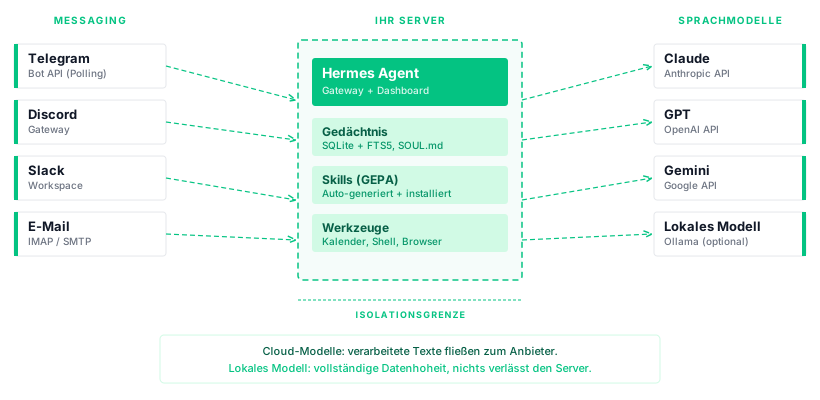
Hermes Agent is an open-source framework by Nous Research that enables an autonomous AI assistant on your own server. The agent connects to messaging platforms (Telegram, Discord, Slack, WhatsApp, Signal, email), uses a language model as its thinking engine and builds persistent memory.
Key characteristics:
- Model-agnostic: Claude, GPT, Gemini, Mistral, DeepSeek or local models via Ollama. Over 200 models through various providers.
- Self-learning: Automatically creates skills from successful tasks and refines them during use. The skill system builds on the GEPA prompt optimizer (ICLR 2026).
- Security: Defense-in-depth model and secrets redaction in logs. The project is actively maintained. Regular updates are important.
- Lightweight: Runs with 1 to 2 GB RAM. No Redis, no external database. SQLite with full-text search for memory.
Important note on data sovereignty: When using cloud language models (Claude, GPT, Gemini), text to be processed is sent to the respective provider. The agent itself, its memory and the messaging connection run entirely on your server. For complete data sovereignty, a local model can be used instead (see section at the end).
Prerequisites
Tested with: Hermes Agent v2026.5.29 on Debian 13, May 2026.
- A Seed on the dataforest cloud with at least 2 CPU and 4 GB RAM. Hermes Agent itself needs about 1 GB RAM. The rest is available for the operating system, Docker and Caddy.
- SSH access to the Seed
- A custom domain (e.g. hermes.your-company.com) pointing to the Seed's IP address via DNS A record. Set the A record at your domain provider.
- A Telegram account (for the messaging connection)
- An API key from a language model provider (Anthropic, OpenAI or another). Create an Anthropic API key at console.anthropic.com.
Installation and configuration
The following steps walk through the complete setup: Docker, Telegram bot, reverse proxy, agent configuration and first launch.
Install Docker
Hermes Agent and the reverse proxy each run in their own Docker container. Connect to the Seed via SSH and install Docker.
Fresh Debian 13 servers run an automatic system update on first boot. If the following command fails with a "dpkg lock" message, wait one to two minutes and try again.
curl -fsSL https://get.docker.com | sh
Create project directory
All configuration files are stored in a shared directory:
mkdir -p /opt/hermes && cd /opt/hermes
Create the data directory for Hermes Agent. This is where the agent stores its memory, skills, sessions and logs:
mkdir -p data
Create a Telegram bot
Before starting the agent, a Telegram bot must exist for communication.
- Open Telegram and search for @BotFather
- Send
/newbot - Choose a display name (e.g. "Hermes Agent")
- Choose a username ending in
bot(e.g.my_hermes_bot) - Copy the API token shown in the response
Also find your Telegram user ID. Send a message to @userinfobot in Telegram. The response contains your numeric ID (e.g. 123456789). This ID is needed so only you can communicate with the bot.
Create Caddyfile
Caddy serves as the reverse proxy. It automatically obtains a Let's Encrypt certificate and forwards requests to the Hermes dashboard. The dashboard is a web interface for configuring and monitoring the agent.
Since the dashboard has no built-in authentication, access is protected via Caddy's basic_auth.
First, generate a password hash for dashboard access:
docker run --rm caddy:2-alpine caddy hash-password --plaintext 'YOUR_SECURE_PASSWORD'
Replace YOUR_SECURE_PASSWORD with a strong password. Copy the output hash.
Create the file Caddyfile:
hermes.your-company.com {
    basic_auth {
        admin PASTE_THE_HASH_HERE
    }
    reverse_proxy hermes:9119
    encode gzip
    header {
        Strict-Transport-Security "max-age=31536000; includeSubDomains; preload"
        X-Content-Type-Options nosniff
        X-Frame-Options SAMEORIGIN
    }
}
Replace hermes.your-company.com with your domain, admin with your desired username and PASTE_THE_HASH_HERE with the generated hash.
Create Docker Compose file
The docker-compose.yml describes the Hermes Agent container and Caddy:
services:
  caddy:
    image: caddy:2-alpine
    restart: always
    ports:
      - "80:80"
      - "443:443"
    volumes:
      - ./Caddyfile:/etc/caddy/Caddyfile:ro
      - caddy_data:/data
      - caddy_config:/config
    depends_on:
      - hermes

  hermes:
    image: nousresearch/hermes-agent:v2026.5.29
    container_name: hermes
    restart: always
    command: gateway run
    volumes:
      - ./data:/opt/data
    env_file:
      - .env
    environment:
      - HERMES_DASHBOARD=1
      - HERMES_DASHBOARD_HOST=0.0.0.0
      - HERMES_DASHBOARD_PORT=9119
    mem_limit: 2g
    cpus: 2.0

volumes:
  caddy_data:
  caddy_config:
What each part does:
command: gateway runstarts the agent gateway process that connects to messaging platforms and processes incoming messagesHERMES_DASHBOARD=1enables the web interface on port 9119- The dashboard binds to
0.0.0.0but is only accessible through Caddy with password protection (port 9119 is not exposed externally) env_file: .envloads API keys and configuration from a separate file- Data is stored in the local
./datadirectory, not a Docker volume, making it directly accessible and easy to back up - The image is pinned to a specific version for reproducibility. Docker tags use calendar versioning (e.g.
v2026.5.29), the corresponding GitHub releases use semantic versioning (e.g.v0.15.2)
Configure environment variables
Create the .env file with API keys and Telegram configuration:
cat > .env << 'EOF'
# Language model
ANTHROPIC_API_KEY=sk-ant-PASTE_YOUR_KEY_HERE

# Telegram
TELEGRAM_BOT_TOKEN=PASTE_YOUR_BOT_TOKEN_HERE
TELEGRAM_ALLOWED_USERS=YOUR_TELEGRAM_ID_HERE

EOF
Replace the placeholders with your actual values. If you want to use a different provider (e.g. OpenAI), replace ANTHROPIC_API_KEY with OPENAI_API_KEY=sk-....
Configure personality
The agent's personality is defined in the SOUL.md file. This file determines how the agent responds, what tone it uses and what boundaries it respects.
Create the file data/SOUL.md:
# Identity

You are a personal assistant. You help with daily planning, email management and research.

## Communication

- Reply concisely and precisely
- Use a professional but friendly tone
- Keep it brief unless a detailed answer is requested
- Reply in the language you are addressed in

## Safety boundaries

- Never send money or make financial transactions
- Never delete files without explicit confirmation
- Never share credentials, API keys or passwords
- Never execute destructive commands (rm -rf, DROP TABLE etc.)
- Ask for clarification on ambiguous instructions instead of guessing
These rules are instructions to the language model, not technical locks. They significantly reduce the risk of unintended actions but provide no absolute guarantee. The better the language model, the more reliably these rules are followed.
Configure model
Create the file data/config.yaml with the model configuration:
model:
  default: "anthropic/claude-sonnet-4-6"
  provider: "anthropic"
This sets the default language model. anthropic/claude-sonnet-4-6 offers a good balance of quality and cost. For more complex tasks, anthropic/claude-opus-4-6 is suitable. For simple queries, the more affordable anthropic/claude-haiku-4-5.
If you want to use OpenAI:
model:
  default: "openai/gpt-4.1"
  provider: "openai"
Start everything
docker compose up -d
The first start takes about two to three minutes. Docker downloads the images, Caddy obtains a Let's Encrypt certificate and Hermes Agent initializes its data directory. On the very first start, the container adjusts file permissions (chown), which can take up to two minutes. The logs only show init messages during this time. Wait until docker compose logs hermes shows the line Gateway running with 1 platform(s).
Verify everything is running
docker compose ps
Both containers (caddy, hermes) should show status running. If a container fails to start:
docker compose logs hermes
Hermes Agent writes its application logs to the data directory. For more detailed debugging:
docker exec hermes cat /opt/data/logs/errors.log
Then verify:
- Dashboard: Open
https://hermes.your-company.comin your browser. After entering the basic auth credentials, the Hermes dashboard should appear. - Telegram: Open Telegram and send a message to your bot (e.g. "Hello"). The agent should respond within a few seconds. On first contact, the bot shows a message: "No home channel is set". Send
/sethometo register the current chat as the home channel. This is required so cron job results (e.g. the daily briefing) are delivered to this chat.
If the Telegram bot does not respond, check the logs:
docker compose logs hermes | grep -i telegram
Common causes: incorrect bot token, missing or wrong Telegram user ID in TELEGRAM_ALLOWED_USERS.
First workflow: daily industry briefing
Hermes Agent supports cron jobs: scheduled actions the agent executes automatically. A daily industry briefing demonstrates the difference from a simple chat interface: the agent researches independently and delivers results proactively.
Create the cron directory:
mkdir -p data/cron
Create the file data/cron/daily-cloud-news.yaml:
name: Cloud Industry Daily
schedule: "0 8 * * 1-5"
platform: telegram
prompt: |
  Research the most important cloud industry news from today.
  Focus on: new services from major cloud providers, open-source releases,
  security incidents, regulatory developments (EU AI Act, GDPR),
  container and Kubernetes updates.

  Summarize the top 3-5 news items in 1-2 sentences each.
  Format: Emoji + headline + short summary.
The five values 0 8 * * 1-5 mean: minute 0, hour 8, every day, every month, Monday to Friday. The briefing is sent automatically to your Telegram bot at 08:00 on weekdays.
Optional: A weekly trend overview as a second cron job. Create data/cron/weekly-trends.yaml:
name: Weekly Recap
schedule: "0 9 * * 1"
platform: telegram
prompt: |
  Create a weekly recap for the cloud and DevOps industry.
  Summarize the most important trends of the last 7 days:
  new tools, security incidents, market movements, regulatory updates.
  Close with a brief outlook for the coming week.
Restart the container to load the cron jobs:
docker compose restart hermes
To test a cron job immediately, send the bot this message in Telegram:
Create a cloud industry briefing for today
The agent researches current news, summarizes them and delivers a structured briefing with sources. This takes 30 to 90 seconds depending on the model.
Security hardening
An AI agent with access to messaging platforms has a relevant attack surface. The following measures are not optional extras but part of the basic configuration.
Configure firewall
Only open the necessary ports. SSH (22), HTTP (80) and HTTPS (443) are sufficient. The Hermes dashboard port (9119) is not exposed directly since Caddy sits in front.
DEBIAN_FRONTEND=noninteractive apt install -y iptables iptables-persistent
# Allow established connections and loopback
iptables -A INPUT -m conntrack --ctstate ESTABLISHED,RELATED -j ACCEPT
iptables -A INPUT -i lo -j ACCEPT

# SSH, HTTP, HTTPS
iptables -A INPUT -p tcp --dport 22 -j ACCEPT
iptables -A INPUT -p tcp --dport 80 -j ACCEPT
iptables -A INPUT -p tcp --dport 443 -j ACCEPT

# Block everything else
iptables -A INPUT -j DROP

# Persist rules
netfilter-persistent save
If your server has IPv6 connectivity (enabled by default on many European hosting providers), apply the same rules for IPv6:
ip6tables -A INPUT -m conntrack --ctstate ESTABLISHED,RELATED -j ACCEPT
ip6tables -A INPUT -i lo -j ACCEPT
ip6tables -A INPUT -p tcp --dport 22 -j ACCEPT
ip6tables -A INPUT -p tcp --dport 80 -j ACCEPT
ip6tables -A INPUT -p tcp --dport 443 -j ACCEPT
ip6tables -A INPUT -j DROP
netfilter-persistent save
Restrict Telegram to known users
The TELEGRAM_ALLOWED_USERS environment variable in the .env file ensures only your Telegram ID can communicate with the bot. Unknown users receive no response. Verify this variable is correctly set.
Behavior rules in SOUL.md
The safety boundaries in SOUL.md (see "Configure personality" section) are the first line of defense against unintended actions. Add rules as needed:
- If the agent should be able to send emails: "Only send emails after explicit confirmation"
- If the agent should execute shell commands: "Only execute read-only commands (ls, cat, grep). Write commands only after confirmation."
No community skills without review
Hermes Agent offers a skill system for installing additional capabilities. Do not install skills from unknown sources without reviewing the source code first:
# Browse official skill directory
docker compose exec hermes hermes skills browse --source official

# Install a skill (only after review)
docker compose exec hermes hermes skills install official/productivity/todoist
API keys with minimal permissions
Create dedicated API keys for the agent with minimal permissions. Anthropic allows restricting API keys to specific models and usage limits. Do not use the same key you use for other projects.
Cost reality
Operating an AI assistant involves two cost blocks:
Server: A Seed with 2 CPU and 4 GB RAM is sufficient for the agent with a cloud language model. Current prices are on the pricing page.
API costs: Language model APIs charge per token, not per request. Tokens are text fragments: one English word equals roughly 1.3 tokens. Each request consumes input tokens (system prompt, memory, your message) and output tokens (the response). Output tokens cost 3 to 5 times more than input tokens.
Reference values for moderate usage (50 to 100 short queries per day). The estimate assumes approximately 1,000 to 3,000 input tokens and 200 to 400 output tokens per request:
| Model | Input / Output per MTok | Estimated monthly cost |
|---|---|---|
| Claude Haiku 4.5 | $1 / $5 | 3 to 15 EUR |
| Claude Sonnet 4.6 | $3 / $15 | 8 to 40 EUR |
| GPT-4.1 mini | $0.40 / $1.60 | 1 to 5 EUR |
| GPT-4.1 | $2 / $8 | 5 to 25 EUR |
Longer conversations, extensive context (memory, skills) and research tasks consume significantly more tokens and drive costs up. Prompt caching (available from Anthropic and OpenAI) reduces the input price for recurring text segments by up to 90%, pushing costs toward the lower end of the estimate.
Set up backups
Identify critical data
Hermes Agent stores all data in the ./data directory (inside the container at /opt/data):
config.yaml: Model configurationSOUL.md: Personality profilememories/: Memory (MEMORY.md, USER.md)sessions/: Conversation historyskills/: Installed and auto-generated skillscron/: Scheduled tasks
Daily backup
Create a backup script /opt/hermes/backup.sh:
#!/bin/bash
BACKUP_DIR="/opt/backups/hermes"
SOURCE="/opt/hermes/data"
BACKUP_FILE="${BACKUP_DIR}/hermes-$(date +%Y%m%d).tar.gz"

mkdir -p "$BACKUP_DIR"
tar -czf "$BACKUP_FILE" -C "$(dirname "$SOURCE")" "$(basename "$SOURCE")"

if [ -s "$BACKUP_FILE" ]; then
  echo "Backup successful: ${BACKUP_FILE}"
else
  echo "Backup failed" >&2
  exit 1
fi

# Delete backups older than 30 days, keep at least 3
TOTAL=$(find "$BACKUP_DIR" -name "hermes-*.tar.gz" | wc -l)
find "$BACKUP_DIR" -name "hermes-*.tar.gz" -mtime +30 | while read OLD; do
  if [ "$TOTAL" -gt 3 ]; then
    rm "$OLD"
    TOTAL=$((TOTAL - 1))
  fi
done
chmod +x /opt/hermes/backup.sh
Set up a cron job:
crontab -e
Add this line:
0 3 * * * /opt/hermes/backup.sh
The backup runs daily at 03:00. 0 3 * * * means: minute 0, hour 3, every day, every month, every weekday.
Server backup via dataforest cloud
The dataforest cloud offers automatic daily offsite backups as an add-on option. This backs up all data on the Seed and allows restoring at any time. Backups are not active by default and must be enabled in the Cloud Console.
Update Hermes Agent
Check the release notes on GitHub before updating.
Before the update: create a snapshot
Create a snapshot of the Seed via the dataforest cloud Console before every update. If something goes wrong after the update, you can restore the Seed to the snapshot.
Perform the update
Update the version number in docker-compose.yml:
image: nousresearch/hermes-agent:v2026.6.10
docker compose pull
docker compose up -d
Verify after update
docker compose ps
docker compose logs hermes | tail -20
Send a test message to the Telegram bot.
Optional: Local models via Ollama
For complete data sovereignty, run a local language model. No text is sent to external providers. This requires significantly more resources:
- Minimum: 8 GB RAM, 4 CPU (for 8B parameter models like Llama 3.1 8B)
- Recommended: 16 GB RAM, 8 CPU (for 13B parameter models)
- Quality limitation: Local models deliver noticeably lower quality than Claude Sonnet or GPT-4.1. They are sufficient for simple tasks (reminders, short answers). For complex research and summaries, cloud models are significantly better.
Add Ollama to docker-compose.yml:
  ollama:
    image: ollama/ollama:latest
    container_name: ollama
    restart: always
    volumes:
      - ollama_data:/root/.ollama
    deploy:
      resources:
        limits:
          memory: 8G
Add the volume:
volumes:
  caddy_data:
  caddy_config:
  ollama_data:
Start and pull a model:
docker compose up -d ollama
docker compose exec ollama ollama pull llama3.1:8b
Configure in data/config.yaml:
model:
  default: "ollama/llama3.1:8b"
  provider: "main"
  base_url: "http://ollama:11434/v1"
A local Ollama server does not require an API key.
Restart the agent:
docker compose restart hermes
What can my assistant do now?
After completing this guide, you have:
- An AI assistant running permanently on a dedicated server
- Telegram connection: reachable via your personal bot
- Persistent memory: the agent remembers context across conversations
- Morning briefing: an automatic daily workflow as an example
- Dashboard: web interface for configuration, password-protected via HTTPS
- Security hardening: firewall, user restriction, behavior rules
Next steps:
- Install more skills: Browse the official skill directory (
docker compose exec hermes hermes skills browse --source official) - Calendar integration: Connect Google Calendar or CalDAV so the agent can manage appointments
- Email connection: Configure an email provider for inbox triage and draft replies
- More messaging channels: Connect Discord, Slack or Signal as additional platforms
- Create custom skills: The agent automatically learns from successful tasks and creates its own skills
If you use Hermes Agent as an entry point to the dataforest cloud: the Seed is a full Linux server and can run other services in parallel. A VPN tunnel provides additional access security. Workflow automation complements the agent with rule-based processes. Credentials can be centrally managed with a self-hosted password manager.
Troubleshooting
Agent does not respond on Telegram:
Check if the container is running (docker compose ps). Verify the bot token and user ID in the .env file. Most common error: spaces or line breaks in the token. Check the logs: docker compose logs hermes | grep -i telegram.
Dashboard not reachable:
Caddy needs a domain pointing to the Seed's IP address via DNS. Check with dig +short hermes.your-company.com whether the A record is correct. Check Caddy logs: docker compose logs caddy.
Agent responds slowly or not at all:
Check if the API key is correct and the chosen provider is reachable. Test with: docker compose exec hermes hermes doctor. If memory is tight (docker stats), increase the memory limit in the compose file or switch to a more affordable model.
Cron job not executing:
Cron job files must be in the data/cron/ directory and end with .yaml. After creating new cron jobs, restart the container: docker compose restart hermes.