This guide covers two ways to set up Nextcloud on your own server: via Coolify (one-click installation) or via Docker Compose (manual configuration with full control). After completing this guide, you will have your own cloud platform with file synchronization, calendars, contacts and office features – accessible via HTTPS with an automatic SSL certificate. Setup takes 10 to 30 minutes depending on the path you choose.
Why your own cloud?
Cloud storage like Google Drive, iCloud or Dropbox is convenient, but your data lives on a third party's servers. You have no control over where data is stored, who can access it, or what happens when prices change or your account gets locked.
With Nextcloud on your own server, you get a full-featured cloud platform: file synchronization, calendars, contacts, video calls, office features and over 400 apps. All on your own infrastructure in Germany.
This guide covers two installation paths:
- Path A: Via Coolify (recommended for beginners): one-click installation, automatic SSL
- Path B: Via Docker Compose (for more control): manual configuration, full flexibility
Prerequisites
- A seed on the dataforest cloud (recommended: 4 CPU, 8 GB RAM; 2 CPU / 4 GB RAM works for getting started). Nextcloud primarily needs memory for PHP and the database – with more than 5 concurrent users, the larger model is recommended.
- SSH access to the seed
- A domain (e.g. cloud.your-company.com) with a DNS A record pointing to your seed's IP address. Set the A record at your domain provider: enter your seed's IP address as the target for the desired subdomain. It can take up to an hour for the record to propagate globally.
- For Path A: Coolify installed on the seed (see Coolify guide)
Path A: Installation via Coolify
Coolify offers Nextcloud as a one-click service. If you already use Coolify, this is the fastest path.
1. Create a Nextcloud service
Open the Coolify dashboard and navigate to your project. Click New Resource and select Service. Search for Nextcloud in the service list and select it.
2. Configure the domain
In the service settings, enter your domain (e.g. cloud.your-company.com). Coolify automatically configures a Let's Encrypt certificate for HTTPS.
3. Review environment variables
Coolify sets up the required database (PostgreSQL or MySQL) automatically. Check the environment variables to ensure a secure database password is set. Key variables:
NEXTCLOUD_ADMIN_USER: admin account usernameNEXTCLOUD_ADMIN_PASSWORD: admin account password (change the default)NEXTCLOUD_TRUSTED_DOMAINS: your domain (set automatically by Coolify)
4. Deploy the service
Click Deploy. Coolify pulls the Nextcloud image, starts the containers and configures SSL. Your cloud will be reachable at your domain within minutes.
Path B: Installation via Docker Compose
This path offers more control over the configuration and is suitable if you do not use Coolify.
1. Install Docker and Docker Compose
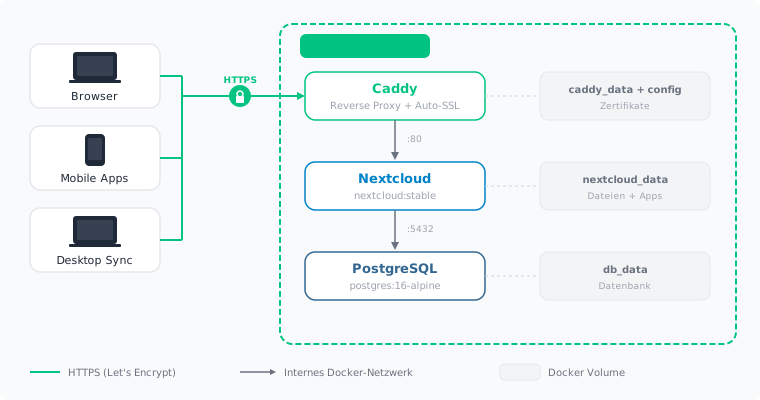
Nextcloud, the database and the reverse proxy each run in their own Docker container. Docker ensures that each component runs in isolation and can be reproduced reliably without modifying the seed's operating system.
Connect to your seed via SSH and install Docker. The official install script detects your operating system automatically and sets up Docker including Docker Compose:
curl -fsSL https://get.docker.com | sh
2. Create a project directory
All configuration files for the Nextcloud installation are stored in a shared directory:
mkdir -p /opt/nextcloud && cd /opt/nextcloud
3. Create a Caddyfile
Caddy serves as the reverse proxy. Unlike nginx or Traefik, Caddy requires only a few lines of configuration and automatically obtains a Let's Encrypt certificate for HTTPS – no additional tools like certbot needed.
Create a file named Caddyfile:
cloud.your-company.com {
    reverse_proxy nextcloud:80
}
Replace cloud.your-company.com with your domain. Caddy forwards all requests to the Nextcloud container and handles encryption.
4. Create the Docker Compose file
The docker-compose.yml describes all three containers and how they work together. Docker Compose starts and connects them automatically:
services:
  caddy:
    image: caddy:2-alpine
    restart: always
    ports:
      - "80:80"
      - "443:443"
    volumes:
      - ./Caddyfile:/etc/caddy/Caddyfile:ro
      - caddy_data:/data
      - caddy_config:/config
    depends_on:
      - nextcloud

  nextcloud:
    image: nextcloud:stable
    restart: always
    volumes:
      - nextcloud_data:/var/www/html
    environment:
      - POSTGRES_HOST=db
      - POSTGRES_DB=nextcloud
      - POSTGRES_USER=nextcloud
      - POSTGRES_PASSWORD=SECURE_PASSWORD_HERE
      - NEXTCLOUD_ADMIN_USER=admin
      - NEXTCLOUD_ADMIN_PASSWORD=ADMIN_PASSWORD_HERE
      - NEXTCLOUD_TRUSTED_DOMAINS=cloud.your-company.com
      - TRUSTED_PROXIES=caddy
      - OVERWRITEPROTOCOL=https
      - OVERWRITECLIURL=https://cloud.your-company.com
    depends_on:
      - db

  db:
    image: postgres:16-alpine
    restart: always
    volumes:
      - db_data:/var/lib/postgresql/data
    environment:
      - POSTGRES_DB=nextcloud
      - POSTGRES_USER=nextcloud
      - POSTGRES_PASSWORD=SECURE_PASSWORD_HERE

volumes:
  nextcloud_data:
  db_data:
  caddy_data:
  caddy_config:
Replace SECURE_PASSWORD_HERE and ADMIN_PASSWORD_HERE with secure passwords and cloud.your-company.com with your domain.
About the file structure:
restart: alwaysautomatically restarts each container if it crashes or the server rebootsdepends_onsets the start order: the database starts before Nextcloud, Nextcloud before Caddyvolumesstore data persistently outside the containers. Without volumes, all files and database entries would be lost when a container restarts
The environment variables explained:
OVERWRITEPROTOCOL=httpsensures Nextcloud generates correct HTTPS links behind the reverse proxyTRUSTED_PROXIES=caddytells Nextcloud that requests are forwarded through the Caddy container. Without this setting, Nextcloud cannot correctly identify user IP addresses and shows the internal Docker IP for all requests instead.OVERWRITECLIURLsets the base URL for command-line operations (e.g. for cron jobs and occ commands)
5. Start everything
docker compose up -d
The -d flag (detached) starts the containers in the background so they keep running after you close the SSH connection.
The first start takes a few minutes. Docker downloads the images, Caddy obtains a Let's Encrypt certificate and Nextcloud sets up the database.
6. Verify everything is running
docker compose ps
All three containers (caddy, nextcloud, db) should show status running. If a container fails to start, the logs show the error:
docker compose logs nextcloud
Then open https://cloud.your-company.com in your browser. You should see the Nextcloud login page.
First login and initial configuration
Open your domain in a browser (e.g. https://cloud.your-company.com). Log in with the admin account you configured in the environment variables.
Recommended first steps
- Change the admin password if you used a default value
- Create additional users under Settings > Users. Each user gets their own account with their own storage space.
- Install apps: Under Apps you will find Calendar, Contacts, Talk (video calls), Nextcloud Office and hundreds more extensions. Calendar and Contacts are especially recommended as they can fully replace Google and Apple services.
- Configure email delivery under Settings > Basic settings. Without email configuration, Nextcloud cannot send notifications for shared files, password reset emails, or calendar invitations. You need an SMTP server for this (e.g. from your email provider).
- Switch background jobs to "Cron" under Settings > Basic settings. In the default "AJAX" mode, maintenance tasks (such as deleting old file versions, generating preview images, and sending notifications) only run when a user opens the web interface. In Cron mode, these tasks run regularly in the background regardless of whether anyone is logged in. This makes Nextcloud noticeably more responsive.
Set up desktop and mobile clients
Desktop (Windows, macOS, Linux)
Download the Nextcloud Desktop Client and install it. On first launch, enter your server address (e.g. https://cloud.your-company.com) and log in. Choose which folders to sync.
Smartphone (iOS, Android)
Install the Nextcloud app from the App Store or Google Play Store. Log in with your server address and credentials.
For automatic photo backup: Open Settings > Auto Upload in the app and enable it for photos and optionally videos.
Sync calendars and contacts
Nextcloud supports the open protocols CalDAV (for calendars) and CardDAV (for contacts). These protocols are natively supported by most operating systems and apps – your Nextcloud events and contacts appear directly in your device's default apps:
- iOS: Settings > Calendar/Contacts > Add Account > Other > CalDAV/CardDAV Account. Server address:
https://cloud.your-company.com - Android: Install DAVx5 and add your Nextcloud account. Calendars and contacts sync automatically with your default apps.
- Thunderbird: Calendar > New Calendar > On the Network > enter the CalDAV URL from Nextcloud settings.
Set up backups
Database backup
With Path A (Coolify), you can configure automatic database backups directly in the Coolify dashboard.
With Path B, create regular backups of the PostgreSQL database. First create the backup directory:
mkdir -p /opt/backups
A single backup can be created manually at any time:
docker exec nextcloud-db-1 pg_dump -U nextcloud nextcloud > /opt/backups/nextcloud-db-$(date +%Y%m%d).sql
This command runs pg_dump inside the database container and saves the entire Nextcloud database to an SQL file with the current date in the filename.
To run backups automatically, set up a cron job. A cron job is a scheduled command that the operating system runs at regular intervals:
crontab -e
Add the following line:
0 3 * * * docker exec nextcloud-db-1 pg_dump -U nextcloud nextcloud > /opt/backups/nextcloud-db-$(date +\%Y\%m\%d).sql
The five values 0 3 * * * mean: minute 0, hour 3, every day, every month, every weekday – the backup runs daily at 03:00 AM.
Back up the data directory
The Nextcloud data directory contains all uploaded files. With Docker, it lives in the nextcloud_data volume. You can find the volume's location on the host system with:
docker volume inspect nextcloud_nextcloud_data --format '{{ .Mountpoint }}'
This directory should be backed up regularly, for example using rsync to an external system.
Server backup via dataforest cloud
The dataforest cloud offers automatic daily offsite backups as an optional add-on. This covers all data on your seed and can be restored at any time. Backups are not enabled by default and must be activated in the cloud console.
Troubleshooting
Nextcloud is not reachable:
Check if all containers are running (docker compose ps). If the Caddy container fails to start, port 80 or 443 may already be in use by another service (ss -tlnp | grep -E ':80|:443').
No HTTPS certificate:
Caddy requires a domain with a DNS A record pointing to the seed's IP address. Check with dig +short cloud.your-company.com that the record is set correctly. Caddy shows certificate errors in its logs: docker compose logs caddy.
Nextcloud shows "Access through untrusted domain":
The domain does not match NEXTCLOUD_TRUSTED_DOMAINS in docker-compose.yml. Correct the value and restart the container: docker compose up -d.
Slow performance: Switch background jobs from "AJAX" to "Cron" (see Recommended first steps). Set up a cron job on the host that triggers Nextcloud maintenance tasks every 5 minutes:
*/5 * * * * docker exec -u www-data nextcloud-nextcloud-1 php cron.php
Add this line via crontab -e. */5 means "every 5 minutes". Then select "Cron" as the background jobs method in the Nextcloud settings under Basic settings.
Summary
After completing this guide, your own Nextcloud instance is set up, reachable via HTTPS and creating automatic backups. Files, calendars and contacts can be synced via the desktop and mobile apps.
For those using Nextcloud as an entry point to the dataforest cloud: the seed is a full Linux server and can also be used for other services in parallel. An overview of further possibilities is available in our solutions and guides.
Install in one click
The Seed runs the installation itself on its first boot.