Why your own Valheim server?
Valheim stores worlds locally on the host's computer. When the host goes offline, the world becomes unreachable for everyone else. A dedicated server solves this problem: the world runs around the clock, regardless of whether the host is currently playing.
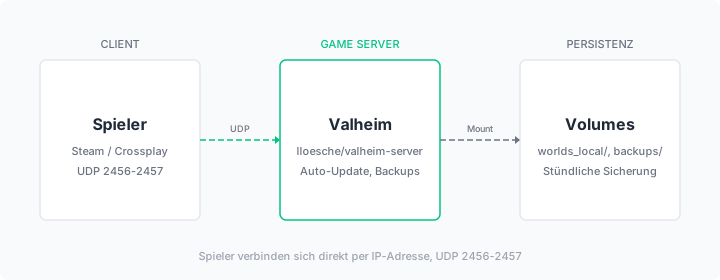
A proven Docker image for this is lloesche/valheim-server. Over 2,200 GitHub stars, Alpine-based, actively maintained. Automatic updates every 15 minutes, integrated world backups with configurable retention and BepInEx mod support.
This guide describes the installation via Docker Compose on a dataforest Seed. After completion, a Valheim server with automatic updates and hourly backups is ready.
Prerequisites
- A Seed on the dataforest cloud (recommended: 2 CPU, 4 GB RAM). Valheim supports a maximum of 10 simultaneous players (game limit). The server needs 2-4 GB RAM depending on world size and explored biomes.
- SSH access to the Seed
Install Docker
Connect to your Seed via SSH and install Docker:
curl -fsSL https://get.docker.com | sh
If you see Could not get lock /var/lib/dpkg/lock-frontend: Fresh Seeds run automatic system updates after first boot. Wait a minute and try again.
Create project directory
mkdir -p /opt/valheim && cd /opt/valheim
Create Docker Compose file
The docker-compose.yml describes the Valheim container:
services:
  valheim:
    image: ghcr.io/lloesche/valheim-server
    restart: always
    ports:
      - "2456-2457:2456-2457/udp"
    environment:
      SERVER_NAME: "My Valheim Server"
      SERVER_PASS: "secret123"
      WORLD_NAME: "MyWorld"
      SERVER_PUBLIC: "false"
      BACKUPS: "true"
      BACKUPS_CRON: "0 * * * *"
      BACKUPS_MAX_AGE: "3"
      BACKUPS_MAX_COUNT: "72"
      UPDATE_CRON: "*/15 * * * *"
    volumes:
      - ./config:/config
      - ./data:/opt/valheim
    cap_add:
      - SYS_NICE
Key settings explained:
SERVER_NAME: The name displayed in the server browser.SERVER_PASS: Password to join (minimum 5 characters, must NOT be part of the server name).WORLD_NAME: Technical world name (no special characters or spaces). Determines the filename of world files.SERVER_PUBLIC: "false": The server does not appear in the public browser. Players connect directly via IP.BACKUPS: "true": Enables automatic world backups.BACKUPS_CRON: "0 * * * *": Creates an hourly backup. The five values mean: minute 0, every hour, every day, every month, every weekday.BACKUPS_MAX_AGE: "3": Deletes backups older than 3 days.BACKUPS_MAX_COUNT: "72": Keeps a maximum of 72 backups (3 days x 24 hours).UPDATE_CRON: "*/15 * * * *": Checks for game updates every 15 minutes.*/15means "every 15 minutes". Updates are only applied when no player is connected.cap_add: SYS_NICE: Allows the container to set thread priorities. Improves game server performance.
The volumes separate configuration and server data:
/config: Contains world files, backups and configuration (the important data)/opt/valheim: Contains the server installation (can be re-downloaded at any time)
Start the server
docker compose up -d
The first start takes several minutes. The container downloads the Valheim server from Steam (approximately 1 GB). Follow the progress:
docker compose logs -f valheim
Once the line Game server connected appears, the server is ready. Press Ctrl+C to exit the log view.
Open firewall ports
Valheim communicates via UDP on ports 2456 and 2457. On a fresh Debian 13 Seed, no firewall is active and the ports are immediately reachable.
If a firewall is configured:
ufw allow 2456:2457/udp
Test the connection
Via Steam (default)
- Open Steam and select View > Game Servers
- Click Favorites > Add server by IP
- Enter your Seed's IP address with port:
YOUR_IP:2457 - Click Connect and enter the server password
Alternatively directly in Valheim:
- Start Valheim and select Start Game > Join
- Click Add Server
- Enter
YOUR_IP:2456 - Select the server and click Connect
Enable crossplay (Steam + Xbox + Microsoft Store)
By default, only Steam players can connect. To enable crossplay, add the environment variable:
    environment:
      # ... existing variables ...
      SERVER_ARGS: "-crossplay"
Restart the container:
docker compose up -d
With crossplay, players connect via an invite code instead of the IP address. The code is shown in the server logs:
docker compose logs valheim | grep "session"
Grant admin rights
To set yourself as admin, you need your Steam ID (a 17-digit number). Find it at steamid.io or in Steam under Profile > Account Details.
Add the environment variable:
    environment:
      # ... existing variables ...
      ADMINLIST_IDS: "76561198012345678"
Separate multiple admins with spaces. After restart, admins can use the F5 console in-game.
Install mods (BepInEx)
The Docker image natively supports BepInEx mods. Enable BepInEx via an environment variable:
    environment:
      # ... existing variables ...
      BEPINEX: "true"
Place mod files (DLL) in the directory:
mkdir -p /opt/valheim/config/bepinex/plugins
After restart, BepInEx loads mods automatically. Note: all players need the same mods on their client side.
Backup and recovery
Automatic backups
The backup function is already configured via environment variables. Backups are stored at:
ls /opt/valheim/config/backups/
Each backup is a ZIP file with a timestamp.
Manual recovery
To restore a world from a backup:
docker compose down
cd /opt/valheim/config/backups
unzip valheim-backup-DATE.zip -d /opt/valheim/config/worlds_local/
docker compose up -d
Server backup via dataforest cloud
The dataforest cloud offers automatic daily offsite backups as a bookable option. This allows backing up all data on your Seed and restoring at any time. Backups are not active by default and must be enabled in the Cloud console.
Adjust world settings
Valheim offers World Modifiers since the Ashlands update. These are set when creating a new world and cannot be changed afterwards. For an existing server with an already generated world, these settings have no effect.
For a new world with custom settings:
- Stop the server:
docker compose down - Change the
WORLD_NAMEin thedocker-compose.yml - Start the server:
docker compose up -d
The server generates a new world with the new name. The old world remains under /opt/valheim/config/worlds_local/.
Troubleshooting
Server does not start (Steam download fails):
On first start, the container downloads the Valheim server from Steam. Occasionally this download fails with a timeout (ERROR! Info request for AppId 896660 returned error Timeout). This is a transient issue on Steam's side. The container waits and retries automatically. If the error persists, a manual restart helps: docker compose restart valheim.
Server does not start (configuration error):
Check the logs: docker compose logs valheim. Most common cause: password is shorter than 5 characters or is part of the server name.
Players cannot connect:
Check if UDP ports 2456-2457 are reachable. Test from an external device: nc -zuv YOUR_IP 2456. Ensure the correct password is entered.
Server does not appear in browser:
If SERVER_PUBLIC: "false" is set, the server does not appear in the public browser. Players must enter the IP directly. This is the recommended setting for private servers.
High RAM usage:
Valheim servers consume more RAM as more biomes are explored. The Ashlands biome is particularly resource-intensive. Check consumption with docker stats valheim.
Updates not working: The image only checks for updates when no player is connected. If players are constantly online, force an update manually:
docker compose restart valheim
On restart, the server automatically updates to the latest version.
Summary
After completing this guide, a Valheim server runs on your Seed with automatic updates and hourly world backups. Players connect via IP address or crossplay invite code.
For additional games on the same server, the Minecraft guide describes setting up a Minecraft server alongside your Valheim server. An overview of all possibilities is available on our Game Server Hosting solution page.