Install Stoat on a dataforest Seed
This guide describes the installation of Stoat (formerly Revolt) on a dataforest Seed. Stoat is an open source platform with text and voice channels that you can run as a self-hosted Discord alternative. Rust backend, voice chat via LiveKit, interface with server, channel and role concepts. In development since 2021, AGPLv3 license.
After completing this guide, you will have an HTTPS-accessible community platform with text and voice channels on your server.
Prerequisites
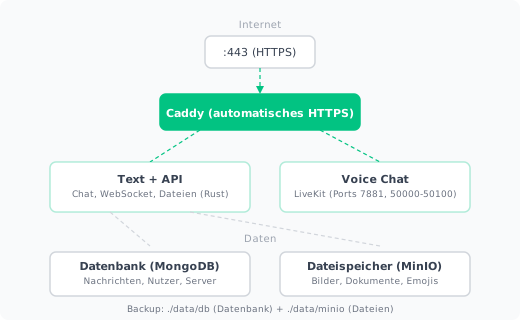
- A Seed on the dataforest cloud (recommended: 4 CPU, 16 GB RAM for voice chat; 4 CPU, 8 GB RAM for text-only operation). Stoat consists of 16 Docker containers including MongoDB, Redis, RabbitMQ, MinIO and LiveKit. Voice chat is the most resource-intensive component.
- SSH access to the Seed
- A custom domain (e.g. chat.your-community.com) pointing to the IP address of your Seed via DNS A record. Set the A record at your domain provider: enter the IP address of the Seed as the target for the desired subdomain. After setting the record, it may take up to one hour for it to propagate globally.
Install Docker
Connect to your Seed via SSH and install Docker. The official installation script detects your operating system automatically and sets up Docker including Docker Compose:
curl -fsSL https://get.docker.com | sh
Clone repository and generate configuration
Stoat provides an official repository with Docker Compose configuration and a configuration script. Clone the repository and run the script with your domain:
git clone https://github.com/stoatchat/self-hosted /opt/stoat
cd /opt/stoat
chmod +x ./generate_config.sh
./generate_config.sh chat.your-community.com
Replace chat.your-community.com with your domain.
The script asks two questions:
- "Would you like to place Stoat behind another reverse proxy?" Answer with N (No). Stoat includes Caddy as a reverse proxy that automatically obtains an SSL certificate from Let's Encrypt.
- "Would you like to enable camera and screen sharing?" Answer with Y (Yes) if voice and video should be used.
The script generates all necessary configuration files:
secrets.env: Cryptographic keys for encryption and voice authenticationRevolt.toml: Central application configuration with all service URLs.envand.env.web: Domain and frontend settingslivekit.yml: Voice server configuration
Important: Back up secrets.env immediately to a separate location. Without this file, access to previously uploaded files is no longer possible. The keys in this file encrypt the file storage.
Limit MongoDB memory
MongoDB claims 50% of available memory for its internal cache by default. On a server with 16 GB RAM, that would be 7.5 GB, which causes bottlenecks with 16 containers running in parallel.
Create the file compose.override.yml to limit the cache to 1.5 GB:
services:
  database:
    command: mongod --wiredTigerCacheSizeGB 1.5
Docker Compose reads compose.override.yml automatically and overrides the database startup command. 1.5 GB cache is sufficient for communities with several hundred members. The advantage of an override file: when updating via git pull, your customization is preserved since only compose.yml is overwritten.
Start
docker compose up -d
Docker downloads all images and starts the 16 containers. The first start takes several minutes as all images need to be downloaded. Caddy automatically obtains a Let's Encrypt certificate for your domain.
Check the status of all containers:
docker compose ps
All containers should show the status running. The createbuckets container shows Exited (0). This is correct: it creates the necessary storage buckets in MinIO at startup and then exits.
If a container does not start:
docker compose logs api
Once all containers are running, the platform is accessible at your domain.
Open firewall ports for voice
Voice chat requires additional ports beyond the standard web ports (80/443). LiveKit uses port 7881 for signaling and ports 50000 to 50100 for audio and video data streams.
On a fresh Debian 13 Seed, no firewall is active and the ports are accessible by default. If a firewall is configured:
ufw allow 7881/tcp
ufw allow 50000:50100/udp
Without these ports, text channels work but voice chat fails.
First account and server setup
Open your domain in a browser (e.g. https://chat.your-community.com). The platform shows a registration form. Create the first account with an email address and password.
Create a server
After logging in, create your first server:
- Click the + icon in the sidebar
- Select Create server
- Choose a name (e.g. the name of your community)
- The server is created with a default text channel
Create channels
Additional channels can be created within the server:
- Click the gear icon next to the server name
- Under Channels, create text channels and voice channels
- Channels can be grouped into categories (e.g. "General", "Gaming", "Development")
Roles and permissions
Roles control who can see and use which channels:
- In the server settings under Roles, create new roles
- Each role can be color-coded
- Permissions can be configured per role and per channel
Invite members
Create an invite link under Server Settings > Invites. Share the link with your community. Members can register via browser or the Android app and join the server.
Test voice chat
Create a voice channel and click Join. The browser will ask for microphone permission. Once at least two members are in the channel, the connection is established via LiveKit.
If voice chat does not work:
- Check if ports 7881/tcp and 50000-50100/udp are reachable:
nc -zv YOUR_SERVER_IP 7881 - Check the LiveKit logs:
docker compose logs livekit - Check if
VITE_CFG_ENABLE_VIDEO=trueis set in.env.web
Restrict registration (optional)
By default, anyone can create an account via the registration form. For a closed community, registration can be restricted to invitation codes.
Open Revolt.toml and add the following lines:
[api.registration]
invite_only = true
Restart the API container:
docker compose restart api
Invitation codes can be created via the MongoDB database:
docker compose exec database mongosh --eval 'use revolt; db.invites.insertOne({ _id: "YOUR_INVITE_CODE" })'
Replace YOUR_INVITE_CODE with a code of your choice. New members enter this code during registration.
Set up backups
Database backup
The MongoDB database contains all messages, servers, channels and user accounts. First create the backup directory:
mkdir -p /opt/backups
A single backup can be created manually at any time:
docker compose -f /opt/stoat/compose.yml exec -T database mongodump --archive --gzip > /opt/backups/stoat-db-$(date +%Y%m%d).gz
The command runs mongodump inside the database container and saves a compressed backup with the current date in the filename. The -T option disables terminal emulation, which is necessary for automated commands.
To run the backup automatically, set up a cron job. A cron job is a time-triggered command that the operating system executes at regular intervals:
crontab -e
Add the following line:
0 3 * * * docker compose -f /opt/stoat/compose.yml exec -T database mongodump --archive --gzip > /opt/backups/stoat-db-$(date +\%Y\%m\%d).gz
The five values 0 3 * * * mean: minute 0, hour 3, every day, every month, every weekday. The backup runs daily at 03:00 AM.
Back up file storage
All uploaded files (images, documents, emojis) are stored in MinIO at /opt/stoat/data/minio/. This directory should be backed up regularly, for example with rsync to an external system.
Server backup via dataforest cloud
The dataforest cloud offers automatic daily offsite backups as an optional add-on. This allows all data on your Seed to be backed up and restored at any time. Backups are not active by default and must be enabled in the Cloud console.
Troubleshooting
Platform is not reachable:
Check if all containers are running (docker compose ps). If the Caddy container does not start, port 80 or 443 may already be in use by another service (ss -tlnp | grep -E ':80|:443').
No HTTPS certificate:
Caddy requires a domain that points to the IP address of the Seed via DNS. Check with dig +short chat.your-community.com whether the A record is set correctly. Caddy shows certificate errors in its logs: docker compose logs caddy.
Blank page after start:
The web frontend may take up to two minutes to load after the first start. Check the status with docker compose logs web.
Voice chat does not work:
Most common cause: ports 7881/tcp and 50000-50100/udp are not reachable. Check the firewall and test reachability from an external device: nc -zv YOUR_SERVER_IP 7881.
High memory usage: Check if the MongoDB memory limit is active:
docker compose exec database mongosh --eval "db.serverStatus().wiredTiger.cache['maximum bytes configured']"
The value should be approximately 1.5 GB (1610612736 bytes).
Update
Stoat is under active development. Updates are distributed via the Git repository:
cd /opt/stoat
git pull
./generate_config.sh --overwrite chat.your-community.com
docker compose pull
docker compose up -d
The --overwrite option regenerates configuration files but keeps existing keys from secrets.env.
Summary
After completing this guide, your own community platform is running on your server, accessible via HTTPS and secured with automatic backups. Text and voice channels, roles, permissions and custom emojis are ready to use.
Explore more possibilities for your Seed in our Solutions and Guides. If you want to additionally secure your server with a VPN, the WireGuard Guide describes how to set up your own VPN server.