This guide shows how to set up a WireGuard VPN server on a Linux server and connect your first device. You will install wireguard-tools via the package manager, generate a key pair, create the server configuration at /etc/wireguard/wg0.conf, open UDP port 51820 and start the tunnel. Then you create a client configuration and connect your device via QR code or config file. The entire setup takes under 15 minutes.
Why run your own VPN server?
A VPN (Virtual Private Network) encrypts all network traffic between a device and the server. The internet provider only sees an encrypted connection to one IP address, not which sites are visited or which services are used. On public WiFi, a VPN prevents other users on the same network from reading the traffic.
Running your own VPN server removes the need to trust a commercial VPN provider. The configuration, logging and physical location of the infrastructure are entirely under your control.
This guide covers setting up a WireGuard VPN server on a dataforest seed. WireGuard has been part of the Linux kernel since 2020, requires minimal resources and can be set up in minutes.
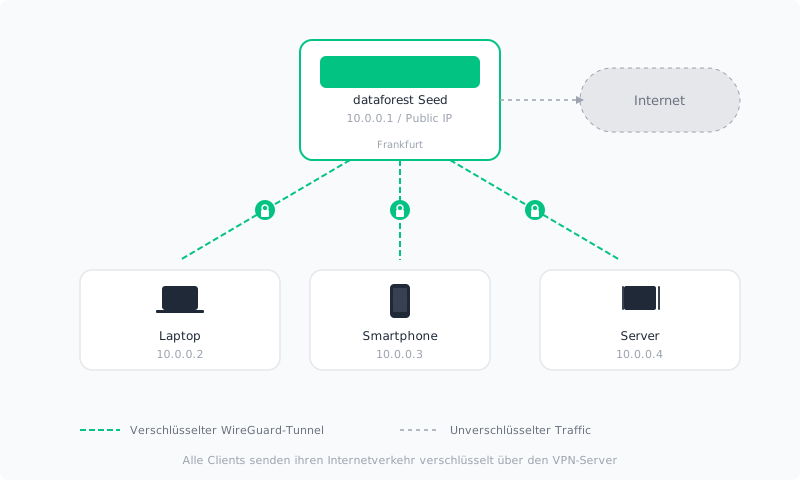
Prerequisites
- A seed on the dataforest cloud (any model is sufficient as WireGuard uses barely any CPU or memory)
- SSH access to the seed
- Basic familiarity with the terminal
A seed can be created via the dataforest cloud UI or the Public API. With the API, a single call is enough:
curl -X POST "https://api.dataforest.net/api/v1/public/seeds" \
  -H "Authorization: Bearer <API-Token>" \
  -H "Content-Type: application/json" \
  -d '{
    "name": "wireguard-vpn",
    "plan": "lines/entry/models/entry-c1-m2-s20",
    "location": "fra01",
    "project_id": "<Project-ID>",
    "ssh_keys": ["<SSH-Key-ID>"],
    "source": {
      "type": "image",
      "ref": "images/debian/versions/debian-v13"
    },
    "enable_ipv4": true
  }'
The API token and project ID can be found in the team settings of the Cloud UI. Available SSH key IDs can be retrieved with GET /sshkeys.
All operating systems on the dataforest cloud (Debian 12+, Ubuntu 22.04+, AlmaLinux 9+, RockyLinux 9+) include WireGuard in the kernel. Only the management tools need to be installed.
Install WireGuard
apt update
apt install wireguard
The wireguard-tools package provides two utilities: wg for key management and wg-quick for conveniently starting and stopping the VPN tunnel.
On newer Debian versions (Debian 13+), iptables is not pre-installed but is required for WireGuard's NAT configuration:
apt install iptables
Configure the server
Generate a key pair
WireGuard uses one key pair per participant: a private key (stays on the server) and a public key (shared with clients).
mkdir -p /etc/wireguard
chmod 700 /etc/wireguard

wg genkey | tee /etc/wireguard/server.key | wg pubkey > /etc/wireguard/server.pub
chmod 600 /etc/wireguard/server.key
Note the server's public key for later use in the client configuration:
cat /etc/wireguard/server.pub
Determine the network interface
The NAT configuration requires the name of the public network interface. It can be found with:
ip route show default
The output shows the interface name after dev (e.g. eth0, ens3 or ens18). Use this value in place of eth0 in the next step.
Enable IP forwarding
For the server to route packets between the VPN tunnel and the internet, IP forwarding must be enabled:
echo 'net.ipv4.ip_forward = 1' | tee /etc/sysctl.d/99-wireguard.conf
sysctl -p /etc/sysctl.d/99-wireguard.conf
Create the configuration file
Create the file /etc/wireguard/wg0.conf with the following content. Replace eth0 with the actual interface and insert the private key:
[Interface]
Address = 10.0.0.1/24
ListenPort = 51820
PrivateKey = <contents of /etc/wireguard/server.key>

PostUp = iptables -A FORWARD -i %i -j ACCEPT; iptables -A FORWARD -o %i -m conntrack --ctstate RELATED,ESTABLISHED -j ACCEPT; iptables -A FORWARD -o %i -j DROP; iptables -A FORWARD -i eth0 -o eth0 -j DROP; iptables -t nat -A POSTROUTING -s 10.0.0.0/24 -o eth0 -j MASQUERADE
PostDown = iptables -D FORWARD -i %i -j ACCEPT; iptables -D FORWARD -o %i -m conntrack --ctstate RELATED,ESTABLISHED -j ACCEPT; iptables -D FORWARD -o %i -j DROP; iptables -D FORWARD -i eth0 -o eth0 -j DROP; iptables -t nat -D POSTROUTING -s 10.0.0.0/24 -o eth0 -j MASQUERADE
Note: The value for PrivateKey is the content of the file (cat /etc/wireguard/server.key), not the file path.
On Debian/Ubuntu, the PostUp/PostDown rules route traffic from the tunnel network 10.0.0.0/24 to the internet through the public network interface (NAT). Replies get back to the devices. The server drops new connections from outside to VPN devices and any packet it would forward between two addresses on the public network. The rules are applied automatically when the tunnel starts and removed when it stops.
On AlmaLinux/RockyLinux, firewalld handles NAT (see next step). PostUp/PostDown rules must not be used here, as they conflict with firewalld and can cause loss of network connectivity.
Configure the firewall
WireGuard uses UDP port 51820. This port must be opened in the firewall.
ufw allow 51820/udp
If ufw is not yet installed on Debian/Ubuntu: apt install ufw && ufw enable. On a fresh seed without an active firewall, this step is optional – the port is already reachable.
Start WireGuard
systemctl enable --now wg-quick@wg0
This command starts the tunnel immediately and ensures WireGuard starts automatically after a server reboot.
Add a peer
Every device that connects to the VPN is configured as a peer. Each peer gets its own key pair and a unique IP address within the VPN network.
Generate a client key pair
wg genkey | tee /etc/wireguard/client1.key | wg pubkey > /etc/wireguard/client1.pub
chmod 600 /etc/wireguard/client1.key
Add the peer to the server configuration
Append the following block to the end of /etc/wireguard/wg0.conf:
[Peer]
PublicKey = <contents of /etc/wireguard/client1.pub>
AllowedIPs = 10.0.0.2/32
Each additional peer gets the next IP address (10.0.0.3, 10.0.0.4 etc.) and its own [Peer] block.
Then restart the tunnel for the change to take effect:
systemctl restart wg-quick@wg0
Connect the client
Create a client configuration file
On the server, create the file /etc/wireguard/client1.conf. This file will then be transferred to the end device:
[Interface]
Address = 10.0.0.2/24
PrivateKey = <contents of /etc/wireguard/client1.key>
DNS = 8.8.8.8

[Peer]
PublicKey = <contents of /etc/wireguard/server.pub>
Endpoint = <public IP of the seed>:51820
AllowedIPs = 0.0.0.0/0
PersistentKeepalive = 25
AllowedIPs determines which traffic is routed through the tunnel:
0.0.0.0/0routes all internet traffic through the VPN tunnel (recommended for use on public WiFi)10.0.0.0/24routes only VPN-internal traffic through the tunnel while the rest goes directly to the internet (split tunnel, useful when only access to the home network is needed)
PersistentKeepalive keeps the connection open when the device is behind a NAT router (which is the case for most home networks and mobile connections).
DNS specifies which DNS server is used while the VPN is active. 8.8.8.8 is Google's public DNS service. An alternative is 1.1.1.1 (Cloudflare). 9.9.9.9 (Quad9) filters malware domains, which is unproblematic in most cases but a restriction worth knowing about. On AlmaLinux/RockyLinux, the DNS option requires systemd-resolved to be active. If the tunnel fails to start with a resolvconf error, either remove the DNS line or enable the service with systemctl enable --now systemd-resolved.
Set up a Linux client
On a Linux system, copy the configuration file to /etc/wireguard/wg0.conf and start the tunnel:
apt update
apt install wireguard
# Transfer client1.conf from the server to /etc/wireguard/wg0.conf (e.g. via scp)
systemctl enable --now wg-quick@wg0
Note: When using AllowedIPs = 0.0.0.0/0, all network traffic is routed through the tunnel. An existing SSH connection to the client will be lost. For server-to-server connections, use AllowedIPs = 10.0.0.0/24 (split tunnel) instead.
QR code for mobile devices
Instead of manually transferring the configuration file to a smartphone, a QR code can be generated and scanned directly in the WireGuard app.
apt install qrencode
Display the QR code in the terminal:
qrencode -t ansiutf8 < client1.conf
Open the WireGuard app (available for iOS and Android), tap + and choose Scan from QR Code.
Important: The QR code contains the client's private key. Do not send it by email, do not take a screenshot, and do not share it in chats.
Test the connection
The tunnel status can be checked at any time on the server:
wg show
When a client is connected, the output shows the time of the last handshake and the amount of data transferred:
peer: <client-public-key>
  endpoint: <client-ip>:12345
  allowed ips: 10.0.0.2/32
  latest handshake: 42 seconds ago
  transfer: 1.23 MiB received, 4.56 MiB sent
If latest handshake does not appear, no connection has been established yet. Common causes:
- Port not reachable: Check whether UDP port 51820 is open in the firewall (
ss -ulnp | grep 51820should show the port as listening) - Keys swapped: The server configuration must contain the client's public key. The client configuration must contain the server's public key. Swapping keys is the most common mistake.
- IP forwarding not active: Check with
sysctl net.ipv4.ip_forwardthat the value is1
Adding more peers
For each additional device, repeat the steps from the Add a peer and Connect the client sections. Each peer needs:
- Its own key pair
- Its own IP address (10.0.0.3, 10.0.0.4 etc.)
- Its own
[Peer]block in the server configuration - Its own client configuration file
WireGuard does not set a hard limit on the number of connected peers. For typical use with 5 to 50 devices, any seed model is sufficient.
Connect two seeds via VPN
WireGuard is not only useful for connecting end devices, but also for creating a private network between two seeds. A typical use case: a seed running a database should not be reachable over the public internet, but only through a VPN tunnel from a second seed.
Starting point
- Seed A (VPN server): WireGuard is set up as described above, VPN IP:
10.0.0.1 - Seed B (second server): Will connect as a peer, VPN IP:
10.0.0.2
Set up Seed B
Install WireGuard on Seed B and transfer the client configuration to /etc/wireguard/wg0.conf (see Connect the client). Use AllowedIPs = 10.0.0.0/24 (split tunnel) so that only VPN-internal traffic goes through the tunnel while regular internet traffic and SSH connections continue to work directly:
[Interface]
Address = 10.0.0.2/24
PrivateKey = <private key of Seed B>

[Peer]
PublicKey = <public key of Seed A>
Endpoint = <public IP of Seed A>:51820
AllowedIPs = 10.0.0.0/24
PersistentKeepalive = 25
systemctl enable --now wg-quick@wg0
Verify the connection
A ping over the VPN addresses should work on both seeds:
# From Seed A
ping 10.0.0.2

# From Seed B
ping 10.0.0.1
Services like databases can now be bound to the VPN address (e.g. bind-address = 10.0.0.1 in the database configuration). Access is then only possible through the VPN tunnel, not over the public internet.
Summary
After completing this guide, a working WireGuard VPN server is set up. Depending on the configuration, it either tunnels all internet traffic from connected devices or provides a private network between multiple seeds. The server starts automatically after a reboot, and additional devices can be added as new peers at any time.
For those using the VPN server as an entry point to the dataforest cloud: the seed is a full Linux server and can also be used for other services in parallel. An overview of further possibilities is available in our solutions and guides.
Install in one click
The Seed runs the installation itself on its first boot.