This guide walks through extending an existing Pelican installation with additional Wings Seeds. You spin up a second Seed on the dataforest cloud, connect it to the Panel Seed over a WireGuard tunnel, and set it up as a standalone Wings node. Caddy on the Panel Seed remains the central TLS terminator and proxies through the encrypted VPN to each Wings Seed.
Topologically we are building a hub-and-spoke: Panel Seed = hub, each Wings Seed = spoke. Wings Seeds do not talk to each other directly, they do not need to. All communication flows through the Panel. Player traffic still goes straight to the respective Wings IP on the public internet, only control traffic runs through the private transport network.
Budget 30 to 60 minutes per additional Wings Seed.
When does a second Wings node pay off?
In the single-seed setup, Panel and Wings still live on the same Seed. For a handful of game servers that is plenty. There are two situations where adding a second Wings Seed pays off more than scaling the existing one up again.
1. More capacity. 4 vCPUs and 8 GB of RAM happily handle a handful of game servers. As soon as another server pushes the host to its limits or noticeably slows the others down, scaling the existing Seed up only helps for so long. A second Wings Seed spreads the load across multiple machines instead. The Panel stays untouched, every Wings node runs on its own.
2. A clean split by game category. One Seed just for Minecraft, a second just for Source Engine games (CS2, Garry's Mod, TF2), a third just for Rust, and so on. The thinking: port ranges stay reserved per IP for a single game category. Minecraft allocations cluster around 25565, Source Engine around 27015, Rust around 28015. If every Wings Seed hosts only one category, the allocations overview stays tidy, firewall rules per IP are easier to read, and game-specific traffic profiles can be applied per IP if that becomes relevant later.
For both paths, this guide goes with a WireGuard hub-and-spoke between the Panel Seed and the Wings Seeds. Control traffic between Panel and Wings stays encrypted on a private transport, and the Wings Seeds need no domain of their own, no Let's Encrypt certificate, and no Caddy. Caddy on the Panel Seed stays in charge of TLS and picks up one extra reverse_proxy block per Wings node. Players still connect straight to the respective Wings Seed IP.
Architecture at a glance
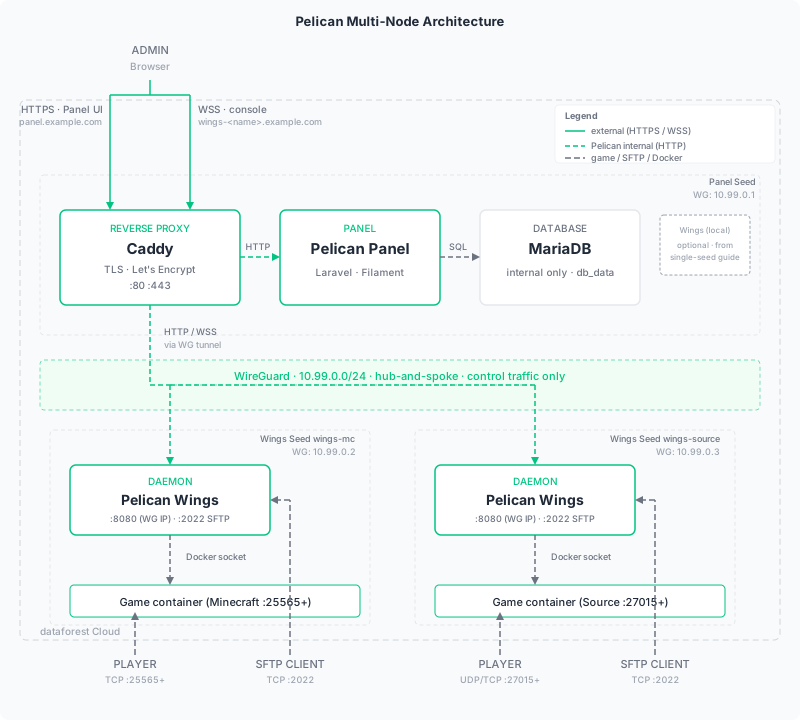
What lives where:
| Component | Where | Role |
|---|---|---|
| Panel + MariaDB + Caddy | Panel Seed | web UI, database, TLS terminator |
| Wings (optional local) | Panel Seed | first Wings from the single-seed guide, can also be removed |
| Wings (remote) | one Wings Seed per game category / capacity bucket | runs the game server containers |
| WireGuard transport | all Seeds | private network Panel↔Wings (hub-and-spoke) |
Which traffic takes which path:
- Admin browser → Panel: straight to the Panel Seed over HTTPS, same as in the single-seed setup.
- Browser → Wings console (WebSocket): through Caddy on the Panel Seed, then over WireGuard to the remote Wings. TLS outside, WG inside.
- Panel → Wings daemon API: same path, Caddy → WG → Wings.
- Player → game server port: straight to the Wings Seed IP. Caddy stays out of the loop, it would be overkill for game traffic.
- Admin SFTP → Wings: straight to the Wings Seed IP on port 2022.
The split is deliberate: control traffic (daemon API, browser console) is small, frequent, and encrypted via WG. Bandwidth-heavy game traffic hits the endpoint directly and never touches the Panel Seed.
Why this setup?
Three design decisions are not obvious on first read but carry the whole setup:
Why WireGuard instead of a dedicated Caddy on every Wings Seed? In theory every Wings Seed could run its own Caddy with its own Let's Encrypt certificate and expose the Wings daemon API over HTTPS itself. That works, but it has two downsides: every Wings Seed grows its own public TLS surface, and every Seed needs its own cert management. With the WireGuard tunnel, control traffic between Panel and Wings stays fully internal, no cert per Wings Seed needed.
Why does wings-<name>.example.com point at the Panel Seed?
Pelican has the in-browser live console talk straight from the browser to Wings, not via the Panel as a proxy. The browser opens a WebSocket connection to the Wings domain, so that domain has to terminate TLS somewhere reachable. With the domain pointing at the Panel Seed, Caddy terminates TLS there and forwards the WebSocket over WireGuard to Wings. If the domain pointed at the Wings Seed instead, we would be back to a cert per Wings Seed.
What does that mean for DDoS?
The only public web surface is the Panel Seed. The wings-<name>.example.com subdomains are extra SNIs on that same Panel Seed, not separate public endpoints. The DDoS Protection of the Panel Seed covers them automatically. The Wings Seed IPs only carry game traffic and SFTP. That is exactly the axis where game-specific traffic profiles per IP become useful.
Prerequisites
- An existing Pelican setup as described in the single-seed guide. Panel, MariaDB and Caddy already run on the Panel Seed.
- A second Seed on the dataforest cloud for the new Wings node. The size you need depends heavily on the egg. Rule of thumb for a starting point: 2 vCPUs and 4 GB of RAM hold two or three light servers (vanilla Minecraft, small Source Engine servers). 4 vCPUs and 8 GB of RAM give headroom for a small handful. Memory-hungry games (modded Minecraft, ARK, Rust) realistically want 4 to 8 GB of RAM per server, in which case a bigger Seed up front pays off. The Seed size can be scaled up or down later at any time. Start small and grow.
- Two A records per Wings Seed:
wings-<name>.example.compoints to the Panel Seed IP (daemon API via Caddy)sftp-<name>.example.compoints to the Wings Seed IP (SFTP)
- Basic WireGuard knowledge. Our WireGuard VPN guide covers the basics, we only handle the Pelican-specific bits here.
Throughout this guide, we use wings-mc as the example name for the new Wings Seed (a Minecraft-category seed). The DNS entries are wings-mc.example.com and sftp-mc.example.com accordingly. If you are simply scaling out horizontally, names like wings2.example.com and sftp2.example.com work just as well.
WireGuard between the Panel Seed and the Wings Seed
We build a simple hub-and-spoke topology: the Panel Seed is the central hub, each Wings Seed joins as a spoke. Subnet 10.99.0.0/24:
- Panel Seed:
10.99.0.1 - First Wings Seed:
10.99.0.2 - Second Wings Seed:
10.99.0.3 - Subsequent ones in order
Install WireGuard
On both Seeds:
apt update && apt install -y wireguard
Generate keys
On each Seed separately:
cd /etc/wireguard
umask 077
wg genkey | tee privatekey | wg pubkey > publickey
echo "private: $(cat privatekey)"
echo "public:  $(cat publickey)"
The pipe writes both keys into files (/etc/wireguard/privatekey and /etc/wireguard/publickey), the two echo lines also print them in the terminal. Note both values per Seed. Where each key belongs:
- The private key stays on the seed it was generated on and goes into that seed's
[Interface]block in the next step (placeholder<PRIVATEKEY-…>). - The public key goes to the other seed's
[Peer]block (placeholder<PUBLICKEY-…>).
Configure the Panel Seed
On the Panel Seed, create /etc/wireguard/wg0.conf:
nano /etc/wireguard/wg0.conf
With the following content:
[Interface]
PrivateKey = <PRIVATEKEY-PANEL-SEED>
Address = 10.99.0.1/24
ListenPort = 51820

[Peer]
# Wings Seed wings-mc
PublicKey = <PUBLICKEY-WINGS-SEED>
AllowedIPs = 10.99.0.2/32
Enable and start:
systemctl enable --now wg-quick@wg0
Configure the Wings Seed
On the Wings Seed, create the same file:
nano /etc/wireguard/wg0.conf
With the following content:
[Interface]
PrivateKey = <PRIVATEKEY-WINGS-SEED>
Address = 10.99.0.2/24

[Peer]
# Panel Seed
PublicKey = <PUBLICKEY-PANEL-SEED>
Endpoint = <PANEL-SEED-PUBLIC-IP>:51820
AllowedIPs = 10.99.0.0/24
PersistentKeepalive = 25
Important: Endpoint is the public IPv4 of the Panel Seed (the same IP you use to SSH in), not the WG IP 10.99.0.1. The WG IP only exists once the tunnel is up. Setting it as the Endpoint makes WireGuard send packets that go nowhere (symptom: wg show shows sent but never received).
PersistentKeepalive makes sure the Wings Seed keeps the tunnel alive behind NAT so the Panel Seed can always reach it.
Enable:
systemctl enable --now wg-quick@wg0
Verify the tunnel
From the Wings Seed, ping the Panel Seed over its WG IP:
ping -c 3 10.99.0.1
Three replies mean the tunnel is up. If not, check that UDP port 51820 on the Panel Seed is reachable from the internet, and that both sides use matching keys. wg show on both ends shows the current status.
Wings-only setup on the new Seed
The Wings Seed only runs Wings. No Panel, no database, no Caddy. That keeps the Seed lean and decouples the update paths from the Panel.
Install Docker
curl -fsSL https://get.docker.com | sh
Create the directories
Same layout as on the Panel Seed:
mkdir -p /opt/pelican && cd /opt/pelican
mkdir -p /etc/pelican /var/lib/pelican /var/log/pelican /tmp/pelican
Create docker-compose.yml
nano /opt/pelican/docker-compose.yml
With the following content:
services:
  wings:
    image: ghcr.io/pelican/wings:latest
    restart: always
    tty: true
    environment:
      TZ: "UTC"
      WINGS_UID: 988
      WINGS_GID: 988
      WINGS_USERNAME: pelican
    ports:
      - "10.99.0.2:8080:8080"
      - "2022:2022"
    volumes:
      - "/var/run/docker.sock:/var/run/docker.sock"
      - "/var/lib/docker/containers/:/var/lib/docker/containers/"
      - "/etc/pelican/:/etc/pelican/"
      - "/var/lib/pelican/:/var/lib/pelican/"
      - "/var/log/pelican/:/var/log/pelican/"
      - "/tmp/pelican/:/tmp/pelican/"
      - "/etc/ssl/certs:/etc/ssl/certs:ro"
    networks:
      - wings0

networks:
  wings0:
    name: wings0
    driver: bridge
    ipam:
      config:
        - subnet: "172.21.0.0/16"
    driver_opts:
      com.docker.network.bridge.name: wings0
Two things matter in the port configuration:
10.99.0.2:8080:8080binds the daemon API exclusively to the WireGuard IP. Port 8080 is unreachable from the public internet, only WG peers can reach it.2022:2022stays open on every interface so admins can SFTP straight to the host.
Important: wg0 has to be up before the Wings container starts. Otherwise Docker raises bind: cannot assign requested address, because the address 10.99.0.2 simply does not exist at that moment yet. With systemctl enable wg-quick@wg0 on the host and restart: always in the compose file, a reboot brings everything back on its own.
Extend Caddy on the Panel Seed
Back on the Panel Seed. We extend the existing stack with a variable, a Caddy environment entry, and a Caddyfile block for the new Wings node.
Add to .env
echo "WINGS_MC_DOMAIN=wings-mc.example.com" >> /opt/pelican/.env
tail -1 /opt/pelican/.env
tail -1 prints the line you just appended so you can confirm it landed.
Update the Caddy service in docker-compose.yml
Open the file and extend the Caddy service environment (keep the existing entries):
nano /opt/pelican/docker-compose.yml
Add the new variable to the environment block of the caddy service:
caddy:
  ...
  environment:
    PANEL_DOMAIN: "${PANEL_DOMAIN}"
    WINGS_DOMAIN: "${WINGS_DOMAIN}"
    WINGS_MC_DOMAIN: "${WINGS_MC_DOMAIN}"
    ACME_EMAIL: "${ACME_EMAIL}"
Extend the Caddyfile
nano /opt/pelican/Caddyfile
Add the third reverse_proxy block at the bottom; the first two stay unchanged:
{
    email {$ACME_EMAIL}
}

{$PANEL_DOMAIN} {
    reverse_proxy panel:80
}

{$WINGS_DOMAIN} {
    reverse_proxy wings:8080
}

{$WINGS_MC_DOMAIN} {
    reverse_proxy 10.99.0.2:8080
}
The {$WINGS_MC_DOMAIN} block is the key piece. Caddy accepts requests for https://wings-mc.example.com and forwards them through the WG tunnel to 10.99.0.2:8080. How the Caddy container reaches a host WG interface in the first place is handled by Docker networking under the hood: anything that does not match one of its connected networks goes via the default gateway to the host, and the host knows the route to 10.99.0.2 over wg0. This requires net.ipv4.ip_forward=1 on the host. Docker sets that on startup automatically; a quick sysctl net.ipv4.ip_forward to confirm does no harm.
Reload Caddy
cd /opt/pelican
docker compose up -d caddy
Caddy automatically obtains a Let's Encrypt certificate for wings-mc.example.com. Follow along with docker compose logs -f caddy.
Add the Wings node in the Panel
In the Pelican panel, Admin → Nodes → +:
- Domain Name:
wings-mc.example.com - Display Name:
wings-mc - Communicate over SSL:
HTTPS with (reverse) proxy. Pelican sets Listen Port8080, Connect Port443and the behind-proxy flag automatically. - In the second wizard step "Advanced", set the SFTP Alias field to
sftp-mc.example.com. Without it, Pelican falls back to theFQDN/ Domain Name as the SFTP hostname, which in our setup points at the Panel Seed where Wings does not listen on 2022. The Panel's helper text spells it out: "Display alias for the SFTP address. Leave empty to use the Node FQDN." With the alias set, SFTP clients land directly on the Wings Seed.
Pick resource limits to match the actual Seed size. As an example for a Seed with 4 vCPUs and 8 GB RAM:
- Memory: Limited · RAM Limit
6144MiB · Overallocation0% - Disk: Limited · Disk Space Limit
51200MiB (≈ 50 GB, adjust as needed) · Overallocation0% - CPU: Limited · CPU Limit
400% (= 4 vCPUs) · Overallocation0%
Halve those numbers for a smaller starter with 2 vCPUs and 4 GB RAM (RAM Limit 3072, CPU Limit 200), scale up for bigger Seeds. The 0 % overallocation makes sure Pelican only hands out what is physically there.
Save. Pelican creates the node and generates the Wings configuration.
Move the configuration to the Wings Seed
Open the new node in the panel and switch to the Configuration File tab. Copy the contents. On the Wings Seed:
nano /etc/pelican/config.yml
Paste and save. The generated file needs no further tweaks: api.host: 0.0.0.0 and api.ssl.enabled: false are exactly what we want here. Wings listens on all interfaces inside the container (0.0.0.0), and the WG-only constraint is enforced by the Docker port binding "10.99.0.2:8080:8080" in the compose file: on the host side, port 8080 is bound only to the WG IP, while inside the container that address does not exist at all. If Wings tried to bind to 10.99.0.2 directly, it would crash with bind: cannot assign requested address, because the WG address only lives on the host.
api.ssl.enabled: false is the right value here too: TLS is handled by Caddy on the Panel Seed, Wings itself only speaks plain HTTP inside the WG tunnel.
Start Wings and verify the heartbeat
On the Wings Seed:
cd /opt/pelican
docker compose up -d wings
docker compose logs -f wings
Wings registers with the panel and starts sending heartbeats. Under Admin → Nodes in the panel, the new node should turn green within seconds.
If the dot stays red, check the WG tunnel first (ping 10.99.0.1 from the Wings Seed), then the Wings logs.
Add an allocation
In the panel, switch to the new node and open the Allocations tab:
- IP Address: the public IPv4 of the Wings Seed, not the Panel Seed. Player traffic goes there directly; the WG tunnel is only for control traffic. Use the keyboard icon in the IP dropdown to enter the IP manually, because Wings only suggests container-internal IPs by default.
- Ports: a port range that fits the game category. Suggested ranges:
- Minecraft node:
25565-25600 - Source Engine node:
27015-27050 - Rust node:
28015-28030
- Minecraft node:
Click Submit. The allocations show up in the list and become available to the new node. The next time you create a server in the panel, the new node shows up as a pickable option.
Operational notes
Backups per Wings Seed
Each Wings Seed has its own /var/lib/pelican with the game server volumes. The backup setup from the single-seed guide has to be done once per Seed:
- Snapshots in the dataforest cloud console for each Wings Seed individually. Take a snapshot on each Seed before any Pelican update.
- Server backups in the panel work across nodes. The ZIP lands at
/var/lib/pelican/volumes/<server-id>/.backups/on whichever Wings Seed hosts that server.
Update order
When updating, pull the Panel first, then the Wings nodes. The reason: the Panel applies the necessary database migrations on container start, and Pelican generally tolerates "Panel ahead of Wings" better than the other way around. An older Panel is more likely to collide with newer Wings API calls than a newer Panel with slightly trailing Wings.
On the Panel Seed (docker compose up -d also triggers the DB migrations on the Panel container's restart):
cd /opt/pelican && docker compose pull panel && docker compose up -d panel
On each Wings Seed:
cd /opt/pelican && docker compose pull wings && docker compose up -d wings
Take a cloud snapshot per affected Seed before every update. During the beta phase, config fields change regularly. With snapshots, rolling back is a one-click operation.
Firewall: Panel Seed and Wings Seed
For typical setups (ufw, nftables, cloud firewall), inbound traffic has to fit on both sides:
Panel Seed (in addition to the rules from the single-seed guide):
51820/udpinbound from the Wings Seed. The Wings Seed is the one initiating the WireGuard connection (its config carries theEndpointfield), so the Panel Seed needs to accept UDP 51820 from the internet.
Wings Seed:
2022/tcpinbound from the internet for SFTP- the allocation ports per game category, e.g.
25565/tcpand25565/udpfor Minecraft or27015/tcpand27015/udpfor Source Engine - no inbound
51820/udpneeded; the WG connection is outbound from here, stateful firewalls let the replies back in automatically.
Port 8080 (Wings daemon API) is not reachable from the outside. The compose binding 10.99.0.2:8080:8080 ties it to the WG IP only, no separate firewall rule needed for that.
Troubleshooting
Heartbeat failed for the new node only, local Wings still green:
Check the WG tunnel: from the Wings Seed run ping 10.99.0.1, from the Panel Seed ping 10.99.0.2. If pings drop, run wg show on both ends and verify that UDP 51820 to the Panel Seed is open.
TLS error in the Panel right after creating the node (e.g. cURL error 35: TLS connect error … tlsv1 alert internal error):
Race condition just after first boot: Caddy is still fetching its Let's Encrypt certificate (can take one to two minutes), and the Wings container needs a moment before it answers too. The Panel polls immediately. Wait two to three minutes and reload the node page; the error clears itself as soon as both the cert and Wings are ready. If it persists past five minutes, check docker compose logs caddy (ACME errors?) on the Panel Seed and docker compose logs wings (daemon up?) on the Wings Seed.
wg show shows 0 B received on the Wings Seed:
Classic mistake: the [Peer] block in the Wings Seed's wg0.conf has the WG IP 10.99.0.1 as Endpoint instead of the Panel Seed's public IPv4. WireGuard sends packets into a tunnel that does not exist yet, so nothing comes back. Set Endpoint to the real Panel Seed public IP and systemctl restart wg-quick@wg0.
Panel console will not connect (WebSocket error) for remote servers only:
Check the Caddy block for wings-mc.example.com. docker compose logs caddy usually surfaces it. Most often the .env entry is missing, or Caddy was not reloaded after the Caddyfile change.
Wings logs say listen tcp 10.99.0.2:8080: bind: cannot assign requested address:
Two possible causes. First: the wg0 interface is not active and the Docker port bind gets stuck on the host. Run systemctl status wg-quick@wg0 to check, restart it if needed, then restart the Wings container as well. Second: someone has changed api.host in the config.yml to the WG IP. That belongs nowhere near there. Wings then tries to bind to the WG IP inside the container, where that address does not exist. Set api.host: 0.0.0.0 back.
SFTP connection fails:
Check the SFTP Alias on the node (Advanced tab). If empty, Pelican falls back to the FQDN, which in our setup points at the Panel Seed where Wings is not listening on 2022. Set SFTP Alias to sftp-mc.example.com with an A record on the Wings Seed and SFTP lands at the right endpoint.
Players cannot connect: The allocation IP has to be the public IP of the Wings Seed that hosts the game server. The custom-IP trick from the single-seed guide (keyboard icon in the IP dropdown) works here too, just with the Wings Seed IP instead of the Panel Seed IP.
Adding another Wings node
Most steps above repeat per additional Wings Seed, with a handful of values that get incremented or renamed each time. Example: alongside the existing wings-mc, a second Wings Seed wings-source joins for Source Engine games.
Values that change per new node:
| What | 1st node (example) | 2nd node (example) |
|---|---|---|
| WG IP | 10.99.0.2 | 10.99.0.3 |
| Daemon API domain | wings-mc.example.com | wings-source.example.com |
| SFTP domain | sftp-mc.example.com | sftp-source.example.com |
.env variable | WINGS_MC_DOMAIN | WINGS_SOURCE_DOMAIN |
| Allocation ports | 25565-25600 | 27015-27050 |
On the Panel Seed (extend existing config, do not replace)
- Append another
[Peer]block to/etc/wireguard/wg0.conffor the new Wings Seed (its public key +AllowedIPs = 10.99.0.3/32):nano /etc/wireguard/wg0.conf systemctl restart wg-quick@wg0 - Add two new A records (see table).
- Append to
.env:echo "WINGS_SOURCE_DOMAIN=wings-source.example.com" >> /opt/pelican/.env tail -1 /opt/pelican/.env - Add the new variable to the
caddyservice'senvironmentblock indocker-compose.yml(WINGS_SOURCE_DOMAIN: "${WINGS_SOURCE_DOMAIN}"). - Add a third
reverse_proxyblock to theCaddyfile, this one pointing at10.99.0.3:8080. - Reload Caddy:
docker compose up -d caddy.
On the new Wings Seed (full Wings-only path)
Walk through the sections above once more, with the values from the table: "Install WireGuard" → "Generate keys" → "Configure the Wings Seed" (address 10.99.0.3/24, endpoint = Panel Seed public IPv4) → "Wings-only setup on the new Seed". In the compose file's port binding, use 10.99.0.3:8080:8080 instead of .2.
In the Pelican panel
Repeat the "Add the Wings node in the Panel" section, with:
- Domain Name
wings-source.example.com - SFTP Alias
sftp-source.example.com(Advanced tab) - Resource limits matching the actual Seed size
Then as before: copy the configuration, start Wings, add allocations for the new port range with the Wings Seed's public IPv4.
What does not repeat per node
- Installing WireGuard on the Panel Seed (one-time)
- Generating WG keys on the Panel Seed (one-time)
- Base
.envvalues (PANEL_DOMAIN,WINGS_DOMAIN,ACME_EMAIL,DB_*) - Caddyfile basics (global block, Panel block, optional local Wings block)
- Panel installer and database setup
Summary
After this setup, the dataforest cloud runs:
- Panel Seed: Pelican Panel, MariaDB and Caddy. Caddy gets one
reverse_proxyblock per Wings node. - Wings Seeds: one Seed per game category or capacity tranche, running only Wings and Docker. Wings listens on its WG IP only, SFTP and game ports stay on the public IP.
- WireGuard transport (hub-and-spoke): a private network between the Panel and every Wings Seed. Control traffic stays encrypted in there.
- Player traffic: straight to the respective Wings Seed IP, no detour through the Panel Seed.
Scale in steps, not in jumps: for each new Wings node, work through the checklist above.
For deeper Pelican territory, the pelican-eggs GitHub organization ships egg templates for many more games, sorted into one repository per category. A broader overview of dataforest's game-server-hosting options lives on the Game Server solution page.